Who This Guide Is For
If you’re a Malaysian retail investor with an active M+ Global account and want to participate in Initial Public Offerings (IPOs) on Bursa Malaysia, this guide walks you through every step—from finding IPOs to checking whether you’ve been allotted shares.
How to Apply for Bursa IPOs via the M+ Global App
Step 1: Navigate to the Trade Page
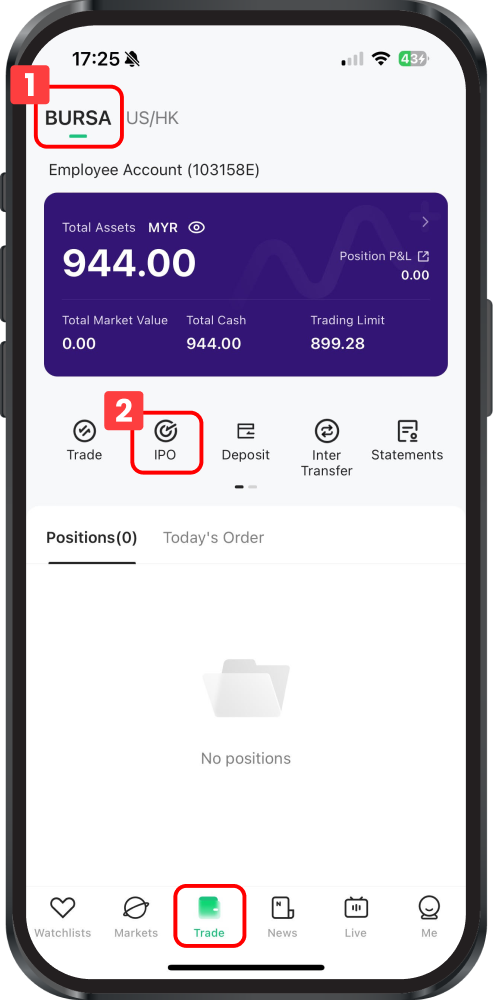
Log into your M+ Global app and tap the Trade page. Make sure the BURSA tab is selected in the top-left corner—this ensures you’re viewing Malaysian market IPOs.
Step 2: Select the IPO Option
On the Trade page, find and tap the IPO option to access the full IPO listing page.
Step 3: Browse and Select Your IPO
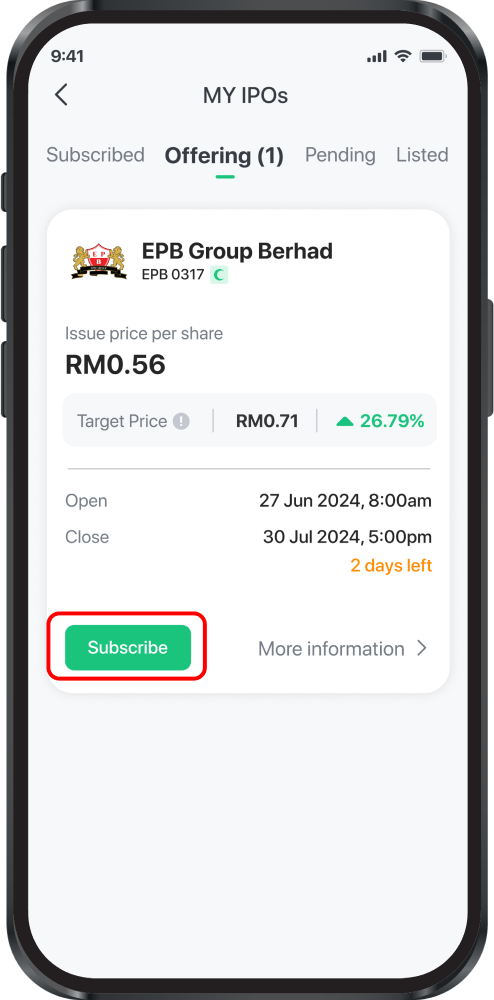
You’ll see all available IPOs ready for subscription. Review each one and tap the Subscribe button under the IPO you want to apply for.
Step 4: Fill in Your Subscription Details
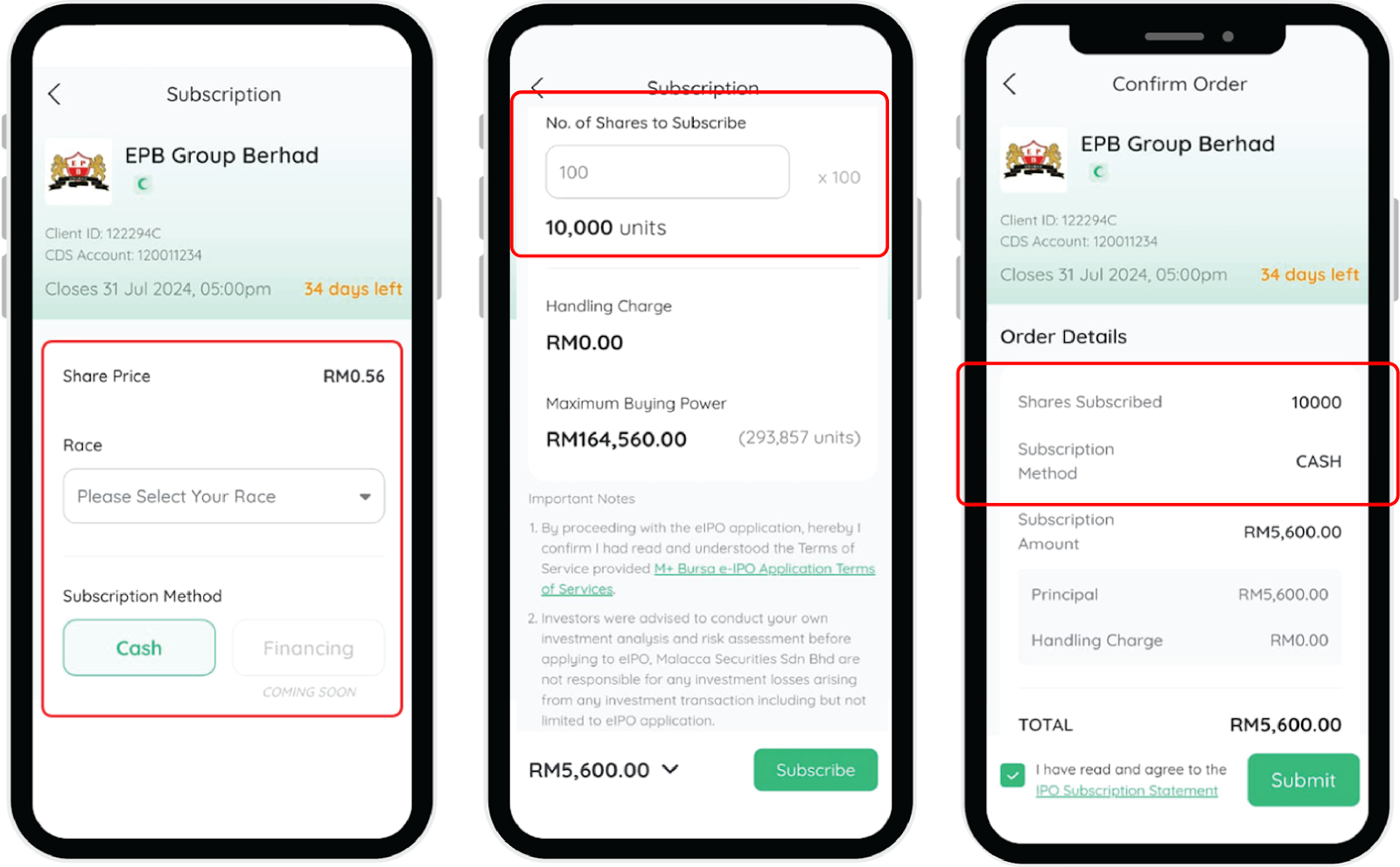
After tapping Subscribe, you’ll be asked to provide:
- Race
- Subscription Method (currently only Cash is available; Financing will be available soon)
- Number of Shares you wish to subscribe to
Your subscription is limited by your Maximum Buying Power—the cash available in your account. If your balance is too low, the system will prompt you to make a deposit before you can proceed.
Remisier tip: Always check your available cash before subscribing. If you’re borderline, deposit extra funds to avoid last-minute rejection during the subscription window.
Step 5: Review and Submit
Check the details of your order carefully. Review the Terms of Services attached to the subscription, tick the Agree box, and tap Submit. You’ll receive a confirmation email at your registered email address once your subscription is successful.
How to Check Your IPO Subscription Status
Method 1: Using the “Offering” Tab
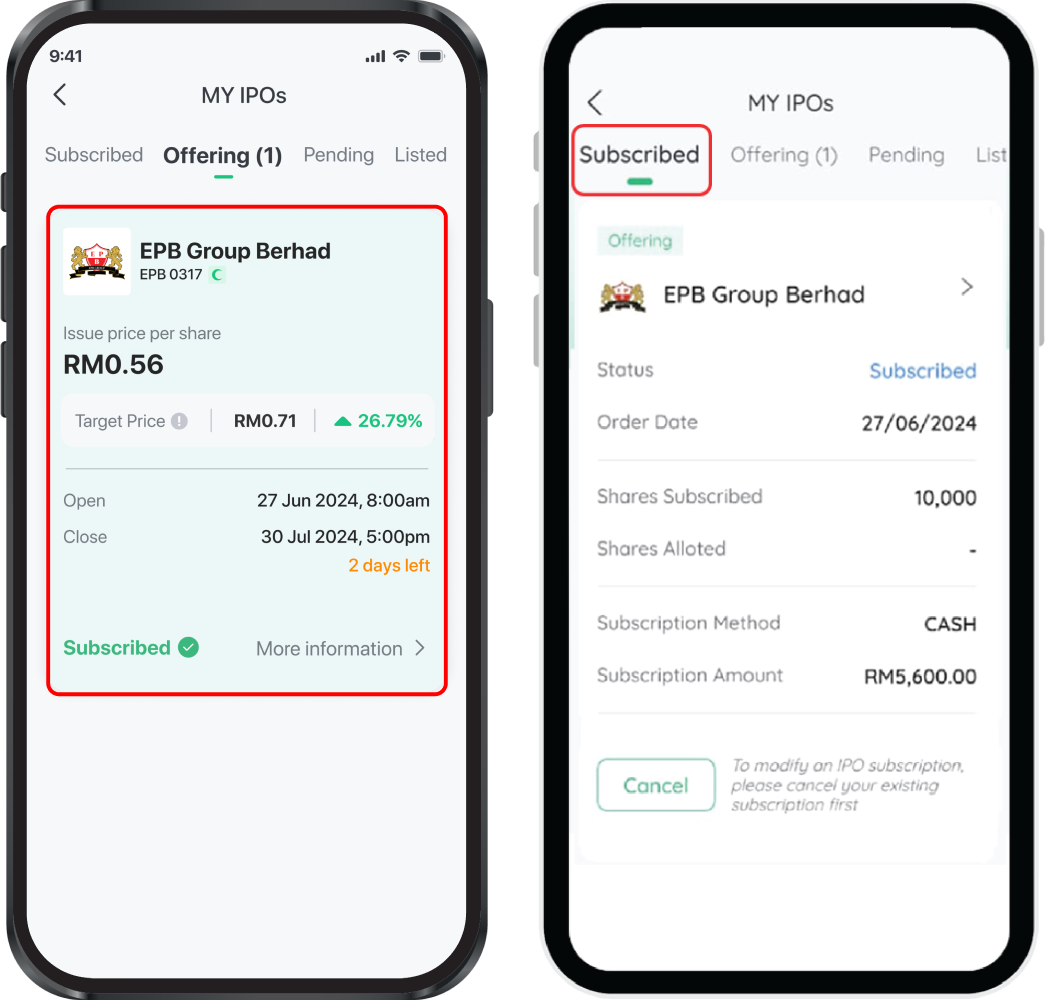
Open the IPO page and tap the Offering tab. Any IPO you’ve subscribed to will display the word “Subscribed” next to it.
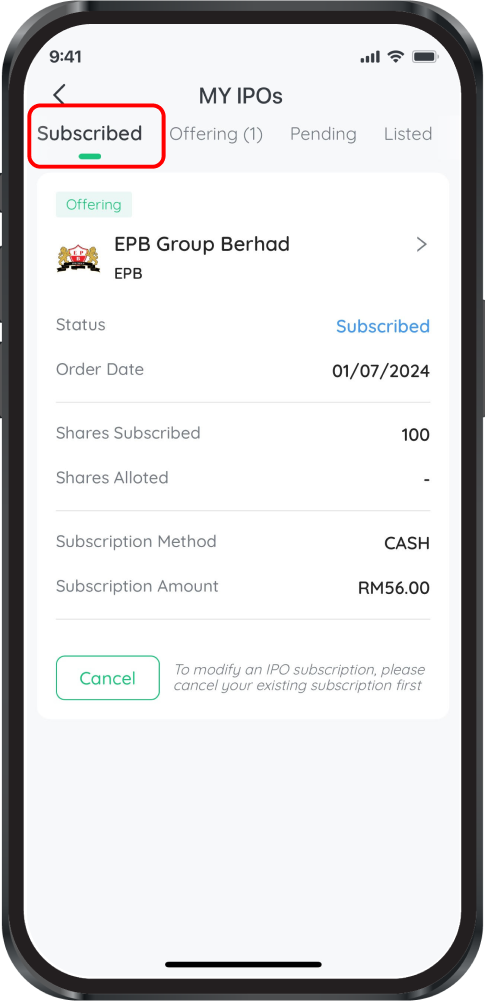
Method 2: Using the “Subscribed” Tab
Tap the Subscribed tab to see a list of all IPOs you’ve applied for. The Status column shows where each application stands in the process.
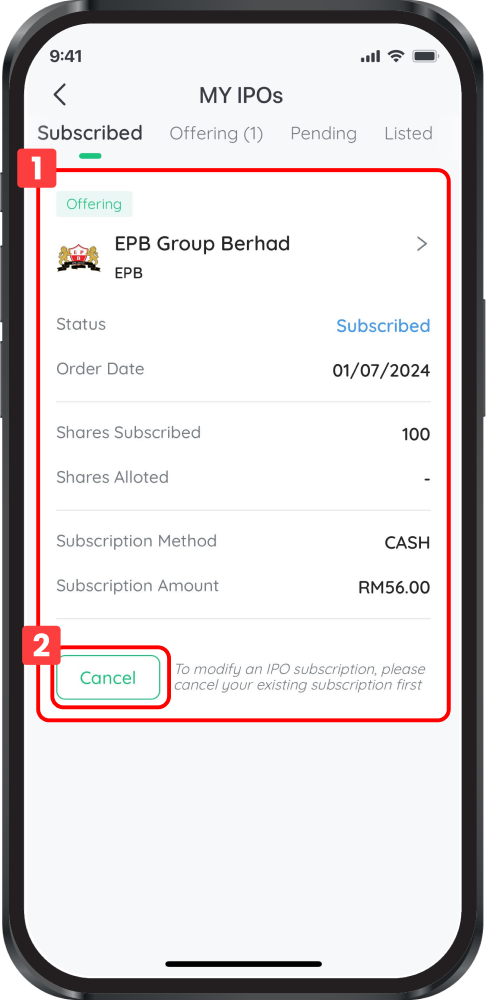
How to Cancel or Modify Your IPO Subscription
Method 1: Via the “Subscribed” Tab
- Tap the Subscribed tab and locate the IPO you want to cancel or modify.
- Tap the Cancel button and confirm your cancellation.
Note: To modify a subscription, you must cancel it first and then resubscribe with new details. Once cancelled, your subscription amount and any handling fees are refunded to your trust account. You’ll also receive a cancellation confirmation email.
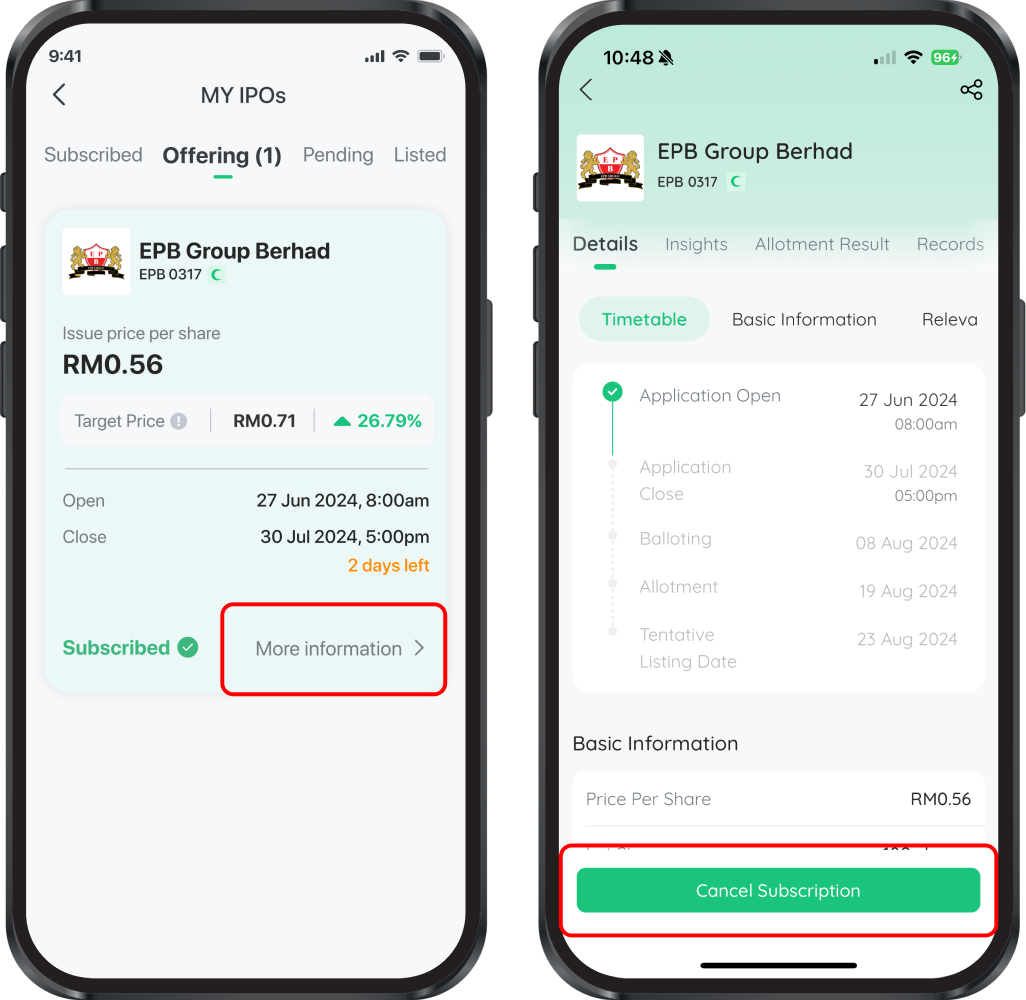
Important: You cannot cancel an IPO subscription once the subscription deadline has closed.
Method 2: Via the “Offering” Tab
- Tap the Offering tab.
- Tap More Information on your chosen IPO.
- Scroll to the bottom and select the Cancel Subscription button.
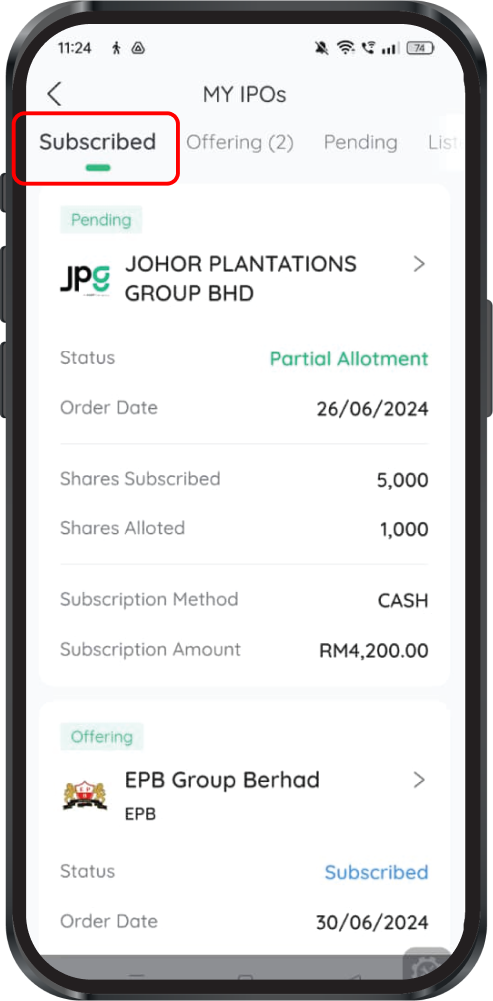
How to View Your Allotment Results
Once the IPO closes and shares are balloted, you can check whether you’ve been allotted shares using any of these three methods:
Method 1: “Subscribed” Tab
Open the Subscribed tab. You’ll see both the number of shares you subscribed for and the number of shares actually allotted to you.
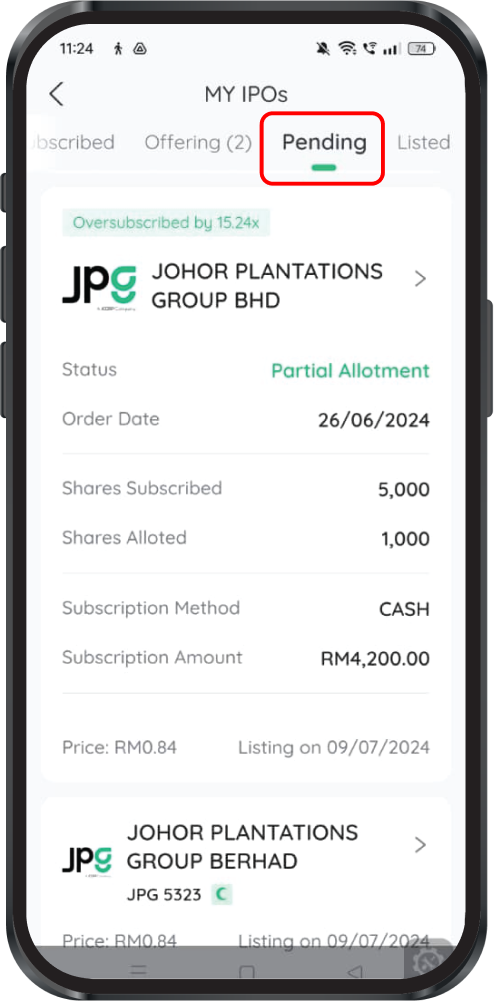
Method 2: “Pending” Tab
Tap the Pending tab to view IPOs that are closed for subscription and waiting to be listed. Allotment details appear here as well.
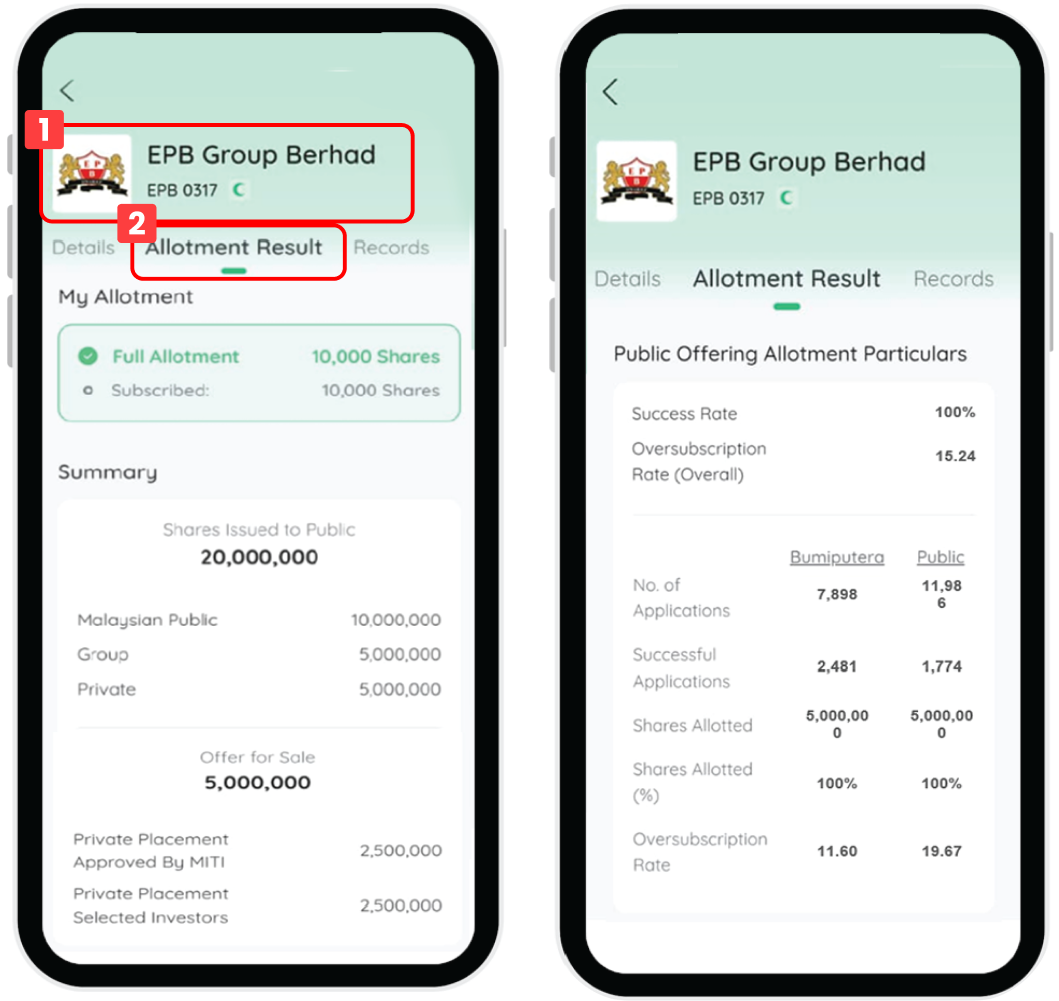
Method 3: “Offering” Tab
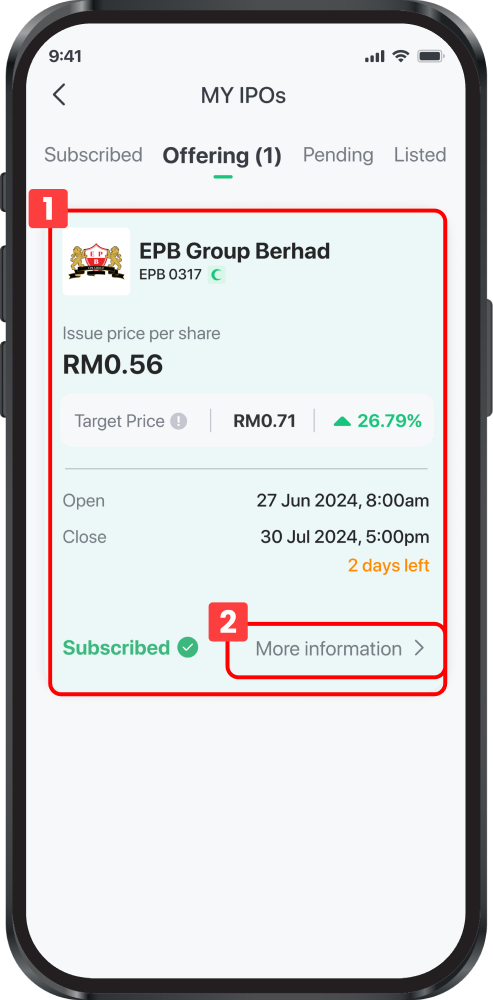
- Tap your IPO in the Offering tab.
- Tap More Information and scroll to the Allotment Result tab.
What If Your Application Wasn’t Successful?
If you weren’t allotted any shares, your subscription funds are automatically returned to your trust account within 2 working days after the ballot date. No action is needed on your part.
How to View the IPO Prospectus
Before subscribing, it’s wise to read the company’s prospectus—the detailed legal and financial document filed with Bursa Malaysia.
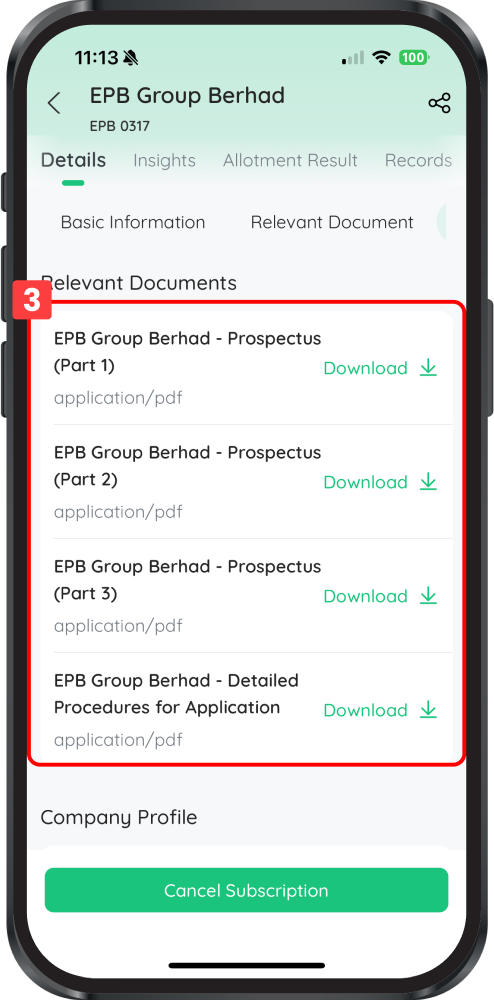
- Tap your chosen IPO in the Offering tab.
- Tap More Information and scroll down to the Corporate Detail section.
- Tap the Prospectus link to view it online, or tap Download to save a copy to your phone.
Remisier tip: Always read the prospectus, especially the Risk Factors section. Understanding what you’re investing in before you subscribe is essential for informed decision-making.
Understanding the IPO Tabs in M+ Global
“Subscribed” Tab
Shows all IPOs you have personally subscribed to via the app, along with your subscription and allotment status.
“Pending” Tab
Displays all IPOs that have closed for new subscriptions and are awaiting official listing on Bursa Malaysia.
“Listed” Tab
Shows recent IPOs that are now officially listed and trading on the Bursa Malaysia Stock Exchange. You can track the performance of IPOs you were allotted shares in here.
Key Takeaways
- IPO applications in M+ Global are made via Trade > IPO, and only the Cash subscription method is currently available.
- Your subscription limit is capped by your Maximum Buying Power—ensure sufficient cash is in your account before subscribing.
- Always review the prospectus and Terms of Services before submitting your subscription.
- You can cancel or modify a subscription at any time before the subscription deadline closes.
- Check allotment results in the Subscribed, Pending, or Offering tabs after the ballot date.
- Unsuccessful subscriptions are refunded within 2 working days after the ballot date.
Frequently Asked Questions
Can I use financing to buy IPO shares?
Currently, only the Cash subscription method is available in M+ Global. Financing method will be available soon, so keep an eye on app updates if you’re interested in this option.
What happens if I don’t have enough cash to subscribe?
The system will notify you if your available cash (Maximum Buying Power) is insufficient. You’ll need to make a deposit to your M+ Global account before you can complete the subscription.
Can I change my subscription after I’ve submitted it?
Yes, but only before the subscription deadline closes. You must cancel your existing subscription first, then resubscribe with the new details. Upon cancellation, your funds and fees are refunded to your trust account.
When will I know if I’ve been allotted shares?
After the IPO closes and the ballot takes place, check your allotment results in the Subscribed, Pending, or Offering tabs. The timeline varies by IPO, so watch for company announcements and app notifications.
What if I wasn’t allotted any shares?
If you weren’t successful in the ballot, your subscription funds are automatically returned to your trust account within 2 working days. You don’t need to do anything—the refund is automatic.
More M+ Global guides
Open your M+ Global account with Dexter Chia
Sign up in the M+ Global app with Invitation Code UBZQ to get AI automated tools, AI stock analysis and AI alerts — and a remisier you can actually reach.
WhatsApp: +60169059789 | Why choose Dexter?
Source: based on the official M+ Global Help Centre (Malacca Securities Sdn Bhd). Fees, hours and procedures are set by Malacca Securities and the exchanges and may change — check the M+ Global app or ask your remisier for the latest.
Disclaimer: This guide is for general information only and is not financial advice.