New: for fees, the app and account opening in one place, read our complete M+ Global guide for Malaysia (2026).
This guide is written for Malaysian retail investors who are new to the M+ Global app and want to start trading stocks and funds properly. I’ve put together this walkthrough based on handling hundreds of client onboardings and support requests every month—so I’ll point out where people usually get stuck.
Understanding the Main Tabs and What They Do
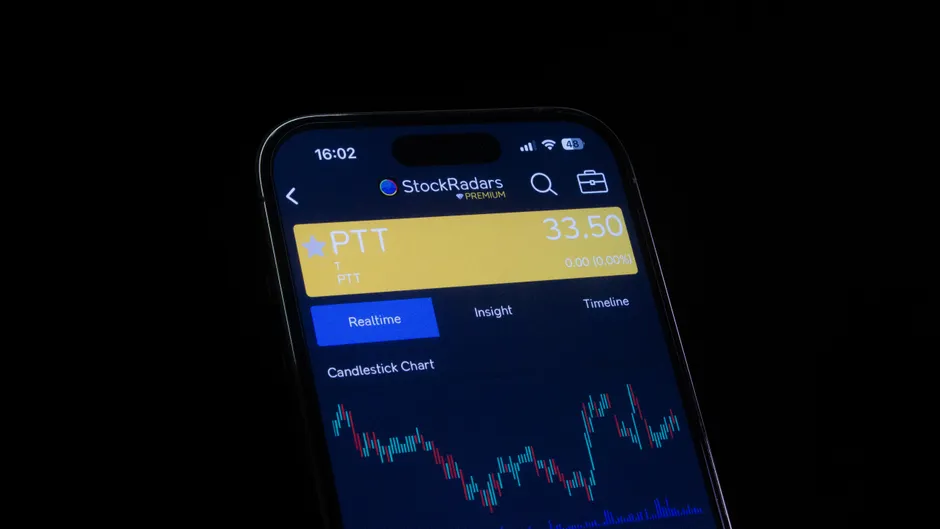
When you first open M+ Global, you’ll see a bottom navigation bar with several tabs. Each one serves a different purpose, and knowing when to use them saves time and prevents mistakes.
The Home tab shows you a snapshot of your account: your total cash balance, portfolio value, and a quick summary of today’s market moves. It’s a glance view, not where you do the work.
The Trade tab is where you search for stocks, read charts, and place buy and sell orders. This is where most of your activity happens. You’ll use it to check prices, set up orders, and monitor execution.
The Portfolio tab displays all your holdings, their current value, your profit or loss on each position, and your overall portfolio performance. This is where you go to review what you own and how it’s performing.
The Account or Settings tab (depending on your app version) is where you manage your personal details, bank accounts for deposits and withdrawals, and view your order history and statements.
Depositing Money Into Your Account
Before you can trade, you need to fund your account. Cash must sit in your M+ account before you can use it to buy shares.
Step 1: Open the deposit option in the app (look for “Deposit” or “Add Funds”).
Step 2: Choose a deposit method shown in the app, such as FPX online banking. If you transfer manually instead, use exactly the account details and reference the app gives you.
Step 3: Pay from a bank account in your own name. With a manual transfer, always include the reference the app asks for, because that is how the deposit is matched to your trading account.
Step 4: FPX deposits are usually credited quickly; manual transfers can take longer. Once credited, the money appears as cash in your M+ account balance.
A common mistake: forgetting the reference number or using the wrong bank account details. Check the deposit screen carefully before hitting send on any transfer.
Placing Your First Buy Order
Once your account is funded, you’re ready to trade. Let me walk you through a buy order step by step.
Step 1: Open the Trade tab and use the search bar to find your chosen stock. For example, type “MAYBANK” or its stock code “1155”.
Step 2: Tap on the stock to open its detail page. You’ll see the current price, a chart, bid-ask spread, and trading volume.
Step 3: Tap “Buy” at the bottom of the screen.
Step 4: You’ll see a form asking you to enter the quantity (number of shares) and the price at which you want to buy. You can accept the current market price or enter a lower limit price if you want to wait for a better entry.
Step 5: Review your order: quantity, price per share, total cost, and any fees. The app will show you if you have enough cash to complete the order.
Step 6: Tap “Confirm” or “Place Order.” If it’s a market order at the current price, it should execute within seconds during market hours.
One thing to watch: Malaysian shares trade in board lots (standard quantities)—usually 100 shares per lot. If you enter an odd number, the system might reject it or place a partial order. Stick to multiples of 100 unless you know your broker accepts odd-lot trading.
Placing Your First Sell Order
Selling is almost identical to buying, but in reverse.
Step 1: Go to the Trade tab and search for the stock you want to sell.
Step 2: Open the stock detail and tap “Sell.”
Step 3: Enter the quantity you want to sell. The app will show you how many shares you actually own of that stock—you cannot sell more than you hold.
Step 4: Set your price (at market or at a limit) and review the total proceeds. The app will deduct any applicable fees and show you the net amount you’ll receive.
Step 5: Confirm and submit. Your shares will be sold, and the cash will return to your account balance. It usually settles within two business days.
Reading Your Portfolio and Understanding Profit/Loss
The Portfolio tab is where you track performance. Let me explain what you’re looking at.
Current Holdings: Each line shows a stock you own. You’ll see the quantity, current price, total value, and your gain or loss on that position.
Profit/Loss Display: This is shown in two ways—absolute (e.g., +RM 150) and percentage (e.g., +3.2%). The percentage is often more useful because it tells you how well the investment is doing relative to your initial outlay.
Portfolio Total: At the top, you’ll see your total cash balance and total portfolio value (cash plus all holdings). Below that is your overall profit or loss for the day and since inception, depending on the view.
Here’s a practical tip: if you drill down into an individual holding, you can often see your average buy price, the date you bought it, and a mini-chart of its performance. This helps you decide whether to hold or trim your position.
Withdrawing Money From Your Account
When you want to take money out, the process is straightforward but requires planning.
Step 1: Go to the Account tab and look for “Withdraw” or “Withdrawal Request.”
Step 2: Choose your destination bank account (you can register multiple accounts; make sure the name matches your trading account for regulatory reasons).
Step 3: Enter the amount you want to withdraw. The app will confirm you have sufficient cash available—remember, cash tied up in open orders or unsettled trades cannot be withdrawn immediately.
Step 4: Submit the request. Processing typically takes one to two business days.
Important: Withdrawals require settled cash. If you’ve just sold shares, they may not be available for withdrawal until the settlement date (usually T+2, which means two business days after the sale).
Finding Contract Notes and Statements
Every trade you make generates a contract note—a legal record of your transaction. Statements show your account activity over a period.
Contract Notes: Tap into the Account tab and look for “Statements,” “Documents,” or “Trade History.” You’ll see a list of every order you’ve placed. Tap any order to view or download its contract note as a PDF. Keep these for your records.
Account Statements: These are typically generated monthly and show all deposits, withdrawals, trades, and fees. You can usually download them as PDF directly from the app. If you don’t see them in the app, contact Malacca Securities to request a statement—they’ll email it to your registered address.
A practical note: keep your contract notes and statements. If there’s ever a query or dispute about a trade, they are your proof.
Common Mistakes to Avoid
Forgetting the reference on manual deposits: This is a frequent issue. The transfer arrives, but it won’t credit your trading account until it is matched manually, which can take days.
Trying to sell more shares than you own: The app won’t let you, but newcomers are sometimes confused by settlement delays. If you sold shares yesterday, they may not show as available to sell again until settlement is complete.
Not checking the bid-ask spread: Before you place a market order, look at the spread. A very wide spread means there’s low liquidity—your order might execute at a worse price than expected.
Ignoring fees: Each trade incurs brokerage, clearing fees, and stamp duty. The app shows these at confirmation, but many people don’t read them. A small trade might have fees that make it uneconomical.
Placing orders outside market hours: Bursa Malaysia closes at 5 PM on weekdays. Orders placed after hours sit in the queue and only execute when the market opens—sometimes at a very different price.
Key Takeaways
- Fund your account with a deposit method shown in the app, such as FPX; with manual transfers, always include the reference the app gives you.
- Use the Trade tab to search, research, and place buy or sell orders; use Portfolio to track holdings and performance.
- Always review order details before confirming—quantity, price, and total cost—to avoid costly mistakes.
- Withdrawals require settled cash; recently sold shares may not be available for withdrawal until T+2.
- Keep your contract notes and statements for your records.
- Check bid-ask spreads and be aware of fees before trading, especially on smaller positions.
The M+ Global app is designed to be intuitive, but like any trading platform, it takes a bit of practice. My best advice: start small, get comfortable with the interface, and always double-check before you confirm a trade. If you run into trouble or want to discuss a trading strategy, feel free to reach out. I’m here to help—that’s what being a remisier is about. You can reach me on WhatsApp at +60169059789, or if you’d like to open an account, use my invitation code UBZQ when you sign up. I’ve helped over 2,200 retail investors in Malaysia get comfortable with online trading, and I’d be happy to walk you through your first trade personally.
Further Reading
Need Help With This?
If you are an M+ Global client and need help with this process, message me directly — I handle these requests for clients every week.
WhatsApp: +60169059789 | M+ Global Invitation Code: UBZQ
Disclaimer: This article is for informational purposes only and does not constitute financial advice. Always do your own research before making investment decisions.
Want to invest in Bursa Malaysia or US markets? Contact Dexter Chia, an AI Driven Remisier who has 2,200+ clients at Malacca Securities Sdn Bhd (M+ Global). M+ Global Invitation Code: UBZQ | WhatsApp: +60169059789 | Why Choose Dexter?