This guide is for Malaysian retail investors who are new to buying shares through M+ Global (Mplus) and want to place a first trade without guesswork. I have walked many of my clients through this exact process as a remisier at Malacca Securities Sdn Bhd, and the same few slips come up again and again. Follow the steps in order and check each one before moving on.
Before You Place Your First Trade

Four things need to be in place before you touch the order screen. Missing any one of them is the most common reason a first trade gets delayed.
- Fund your account. Cash must be in your trading account before you buy. Look at the available balance, not the total balance, because money tied up in pending trades cannot be used again.
- Check your trading limit. Your broker sets a limit on how much you can trade based on your account. Ask us if you are unsure of your limit rather than assuming it is high enough.
- Confirm you have an M+ CDS account. The CDS is where your shares are held electronically, because Bursa is scripless and there are no share certificates. You need one CDS account per broker, so an account you hold with another broker will not work with M+. M+ CDS numbers are 15 digits and start with 012-001, which you can check on your account documents.
- Know the stock code or name. Bursa stocks are identified by numeric codes. Search by code wherever possible, because similar company names are easy to confuse under pressure.
Searching for a Stock and Reading the Quote Screen
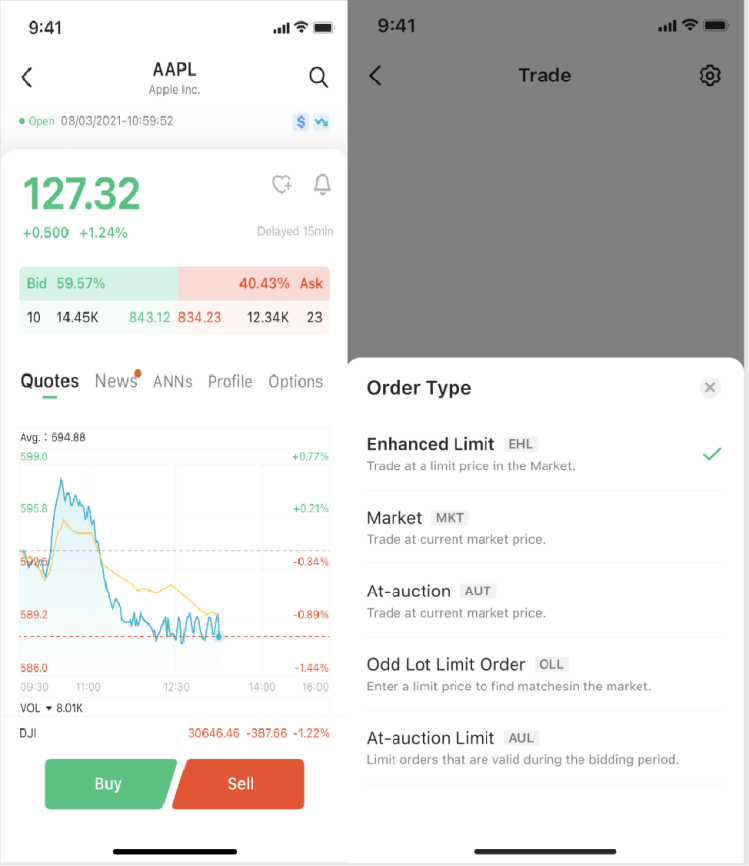
Once you find the stock, the quote screen shows the prices and activity you need before you commit any money. Spend a minute reading it before you type anything into the order box.
- Bid is the highest price buyers are currently offering. If you sell at market, this is roughly the price you will get.
- Ask is the lowest price sellers are currently asking. If you buy at market, this is roughly the price you will pay.
- Last done is the price of the most recent trade. It can be stale in a quiet stock, so do not rely on it alone.
- Volume is the number of shares traded so far in the session. Low volume usually means a wide gap between bid and ask, and a higher chance your order moves the price.
Placing a Buy Order
Bursa trades in board lots of 100 shares. Enter quantities as multiples of 100 unless you have confirmed with us how odd lots are handled on your account.
The most important choice on the order form is the order type. The table below shows the two options most beginners see.
| Order type | What it does | Main risk |
|---|---|---|
| Limit order | Trades only at your price or better | May not fill if the price moves away |
| Market order | Trades immediately at the best available price | Price can be far from the quote in a thin stock |
For most beginners, a limit order is the safer default. It protects you from paying far more than you expected.
- Search the stock and confirm the code and company name on the screen.
- Select Buy and enter the quantity in multiples of 100.
- Choose a limit order and enter your price, usually near the current ask.
- Choose the order validity. A day order expires at the end of the session if not filled. Other validity options may be available, so check the choices shown on your screen.
- Review the total, then submit. Do not click twice if the screen seems slow.
Avoid market orders in thinly traded stocks. A single large order can push the price well beyond what you saw on the screen.
Checking, Amending or Cancelling an Order
After you submit, the order sits in your order list until it is matched, partly matched, or cancelled. Check it at least once before the session ends.
- Open the order status or order book section of the trading platform.
- Confirm whether the order is pending, partially matched, or fully matched.
- If it is still pending and you need to change the price or quantity, use the amend function on that order.
- If you no longer want it, use the cancel function. A partly matched order can usually only have the unmatched portion cancelled, so the matched shares still need to be settled.
If the platform will not let you amend or cancel, the order may already be matched or close to matching. Contact us quickly rather than placing a second order, because that can leave you with a double position.
Selling Shares You Hold
You can only sell shares that are in your CDS account and available to sell. This is the step most new investors overlook.
- Check your holdings in the portfolio section and confirm the quantity available to sell.
- Select Sell, the stock, and a quantity in multiples of 100 that does not exceed what you hold.
- Choose a limit price and a validity period, the same way you would for a buy.
- Submit, then check the order status until it is matched.
Shares you have just bought may not be available to sell until they have settled in your CDS account. If the sell order is rejected, check the settlement status of your recent purchase before trying again.
After the Trade: Settlement, Contract Note and Where the Shares Appear
Bursa trades settle on T+2, which means two market days after the trade date. Public holidays are skipped, so a trade just before a holiday can take longer to settle than you expect.
The settlement date is the day the shares are credited or debited in your CDS account and the cash is exchanged. Note this date when you buy, because it is also the date by which funds must be ready for a purchase.
- After the trade is matched, a contract note is issued. Check the statements or documents section of your account for the current format and timing, rather than relying on memory.
- Check the contract note for the stock code, quantity, price, and trade date.
- On the settlement date, check your CDS holdings. The shares should appear there, not in a separate share certificate.
For charges such as brokerage and other trading costs, see our separate fees guide. I have not repeated them here because they change and vary by market.
Common Mistakes to Avoid
- Buying at market in a thin stock. The fill price can be far from the quote you saw, so use a limit order.
- Entering the wrong quantity. Typing 1,500 instead of 150 is an expensive error, so read the quantity line before submitting.
- Forgetting the settlement date. Missing it can cause problems with your funds or your sale plans, so put the date in your calendar.
- Selling shares you do not yet hold. If the shares have not settled in your CDS account, the sell order may be rejected or cause a problem.
- Assuming an order is done. A pending order is not a completed trade, so check the status until it is fully matched.
- Placing duplicate orders. If the screen seems slow, check your order list before clicking again.
Key Takeaways
- Fund your account, check your trading limit, and confirm your M+ CDS account before placing any order.
- Read the bid, ask, last done, and volume before you enter a price.
- Use limit orders by default, and trade in multiples of 100 shares.
- Check your order status until it is fully matched, and amend or cancel promptly if needed.
- You can only sell shares that are available in your CDS account, and trades settle on T+2.
Frequently Asked Questions
How long does it take for shares to show up after buying on M+ Global?
Bursa trades settle on T+2, meaning two market days after the trade date. The shares should then appear in your M+ CDS account on the settlement date.
Can I use my CDS account from another broker to trade on M+ Global?
No, each broker issues its own CDS account, so you will need a separate M+ CDS account to hold shares bought through M+. Your existing CDS account with another broker stays where it is.
What if I place an order with the wrong quantity or price?
If the order is still pending, you can amend or cancel it from the order list. If it has already been matched, contact your remisier straight away so we can look at the options with you.
Do I need physical share certificates to hold shares I buy?
No, Bursa is scripless, so your shares are held electronically in your CDS account. There are no certificates to collect or store.
If you are opening your M+ Global account or placing your first trade and want someone to walk through the screens with you, get in touch. I am Dexter Chia, a remisier at Malacca Securities Sdn Bhd, and I handle these requests every day for my clients. You can reach me on WhatsApp at +60169059789, and if you are opening a new account, use my M+ Global Invitation Code UBZQ.
Need Help With This?
If you are an M+ Global client and need help with this process, message me directly — I handle these requests for clients every week.
WhatsApp: +60169059789 | M+ Global Invitation Code: UBZQ
Disclaimer: This article is for informational purposes only and does not constitute financial advice. Always do your own research before making investment decisions.
Want to invest in Bursa Malaysia or US markets? Contact Dexter Chia, an AI Driven Remisier who has 2,200+ clients at Malacca Securities Sdn Bhd (M+ Global). M+ Global Invitation Code: UBZQ | WhatsApp: +60169059789 | Why Choose Dexter?