M+ Global Desktop Version: The Ultimate Guides & FAQs

Quick Answer: The M+ Global desktop (PC) version has five modules: Quotes, Individual Stocks, Trading, Panels and Settings. It shows real-time quotes (Level 1 for US stocks and 10-level Level 2 for Hong Kong stocks), fund-flow data, charts, news and financials, and lets you trade directly from watchlists and stock pages.
  • This guide consists of a total of five modules: Quotes, Individual Stocks, Trading, Panels, and Settings.​
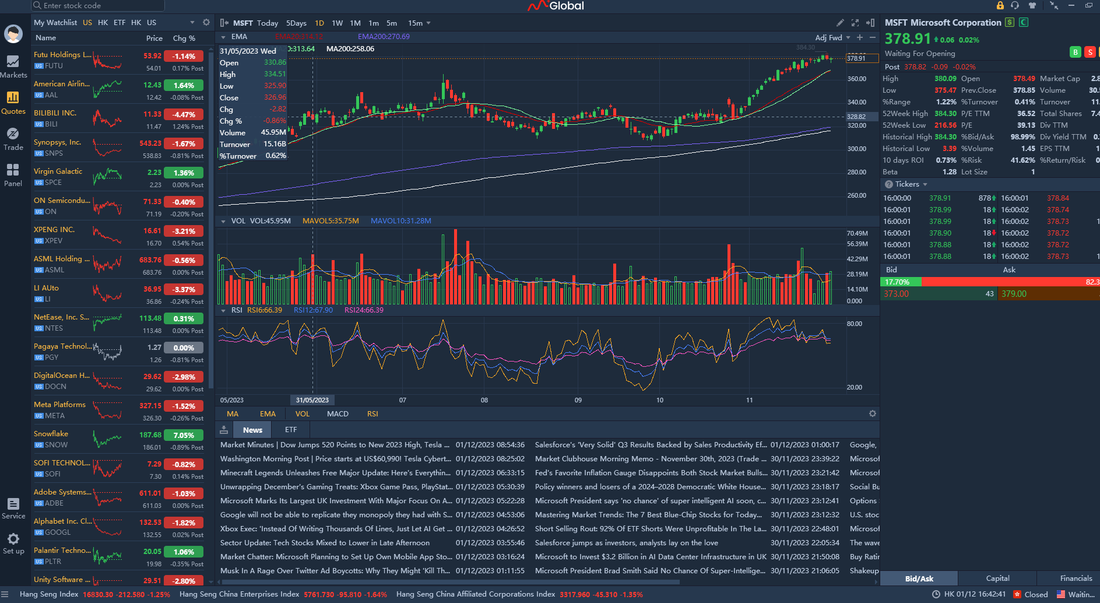
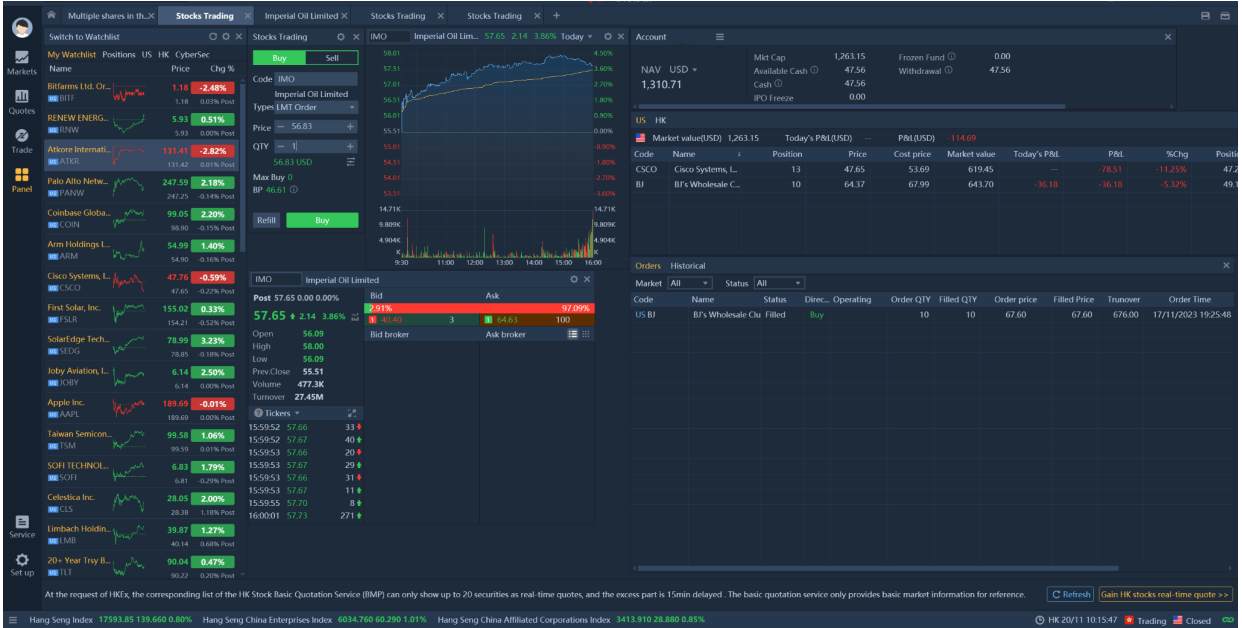
Example of M+ Global Trading Layout for PC Version.

Quotes

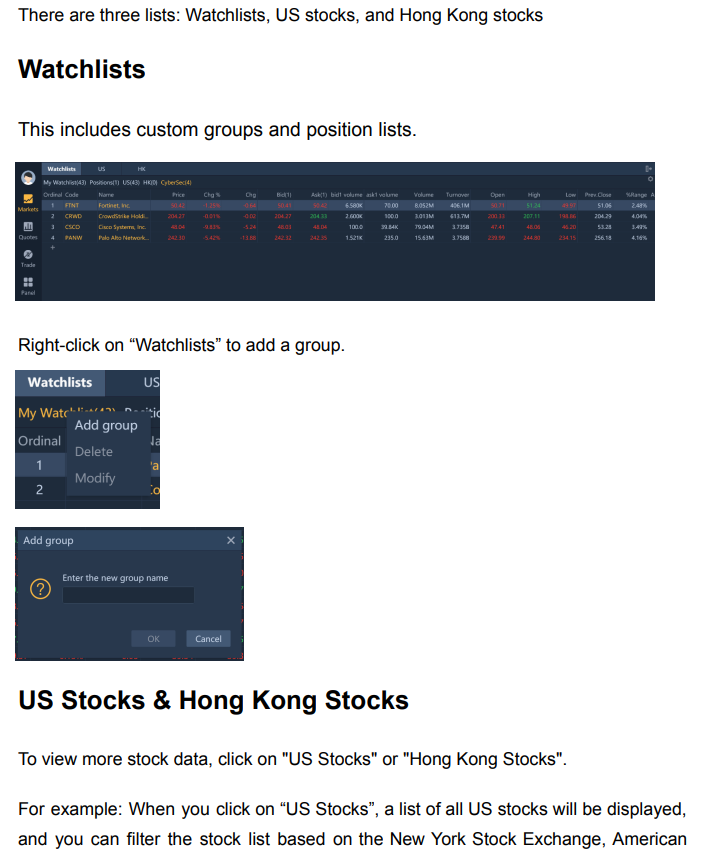
M+ Global PC Version - Quotes & Watchlists
M+ Global PC Version – Quotes & Watchlists
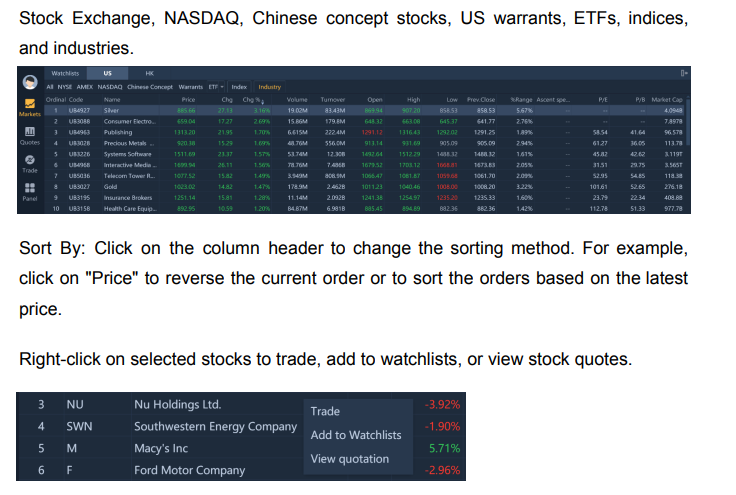
M+ Global PC Version - Quotes & Watchlists
M+ Global PC Version – Quotes & Watchlists
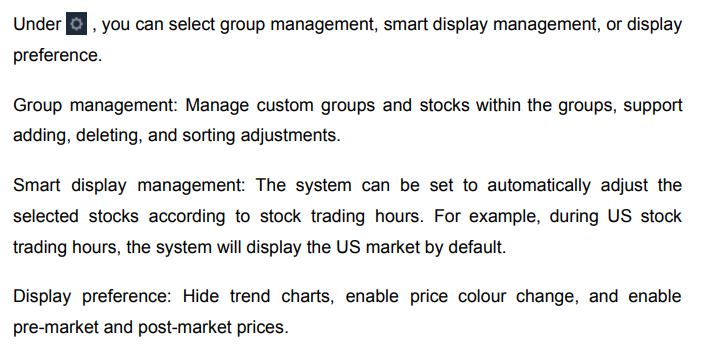
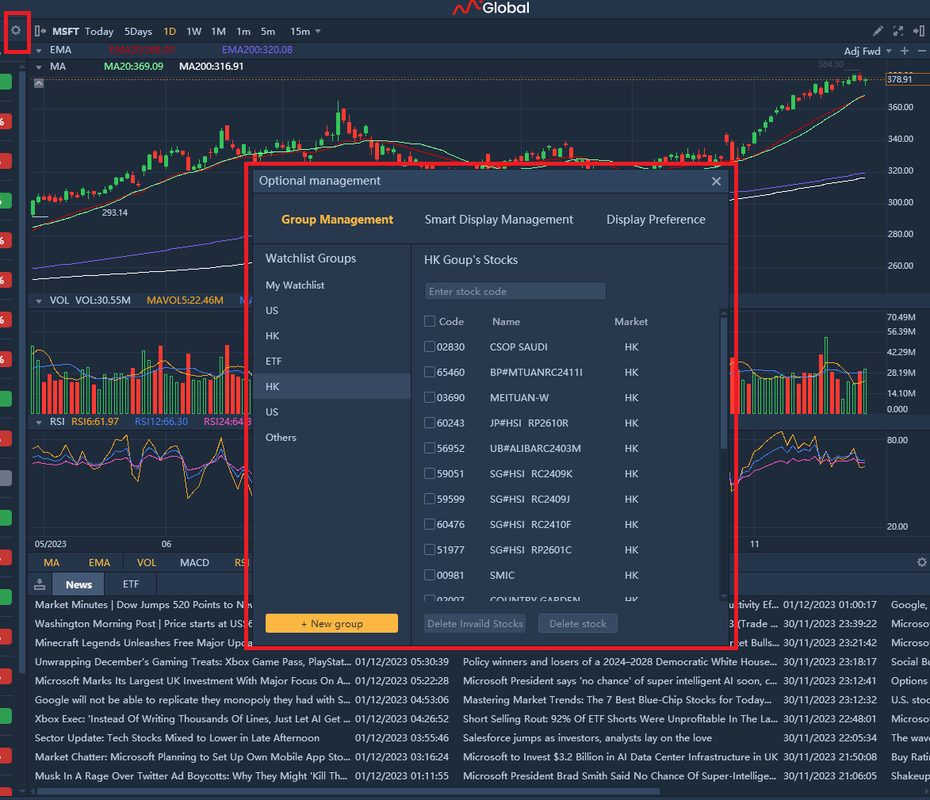
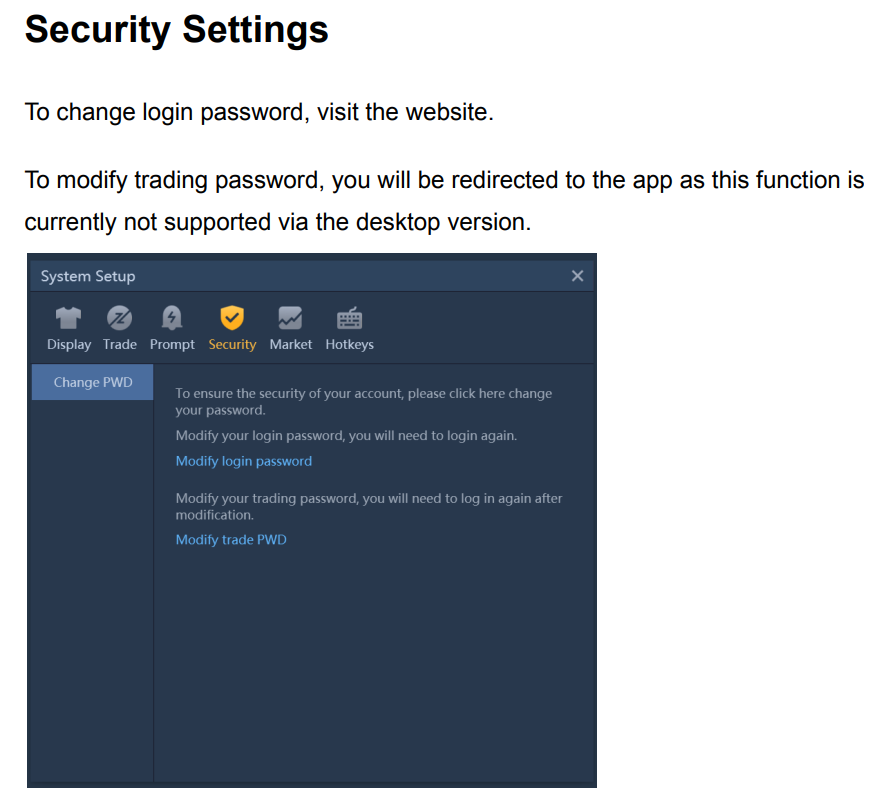
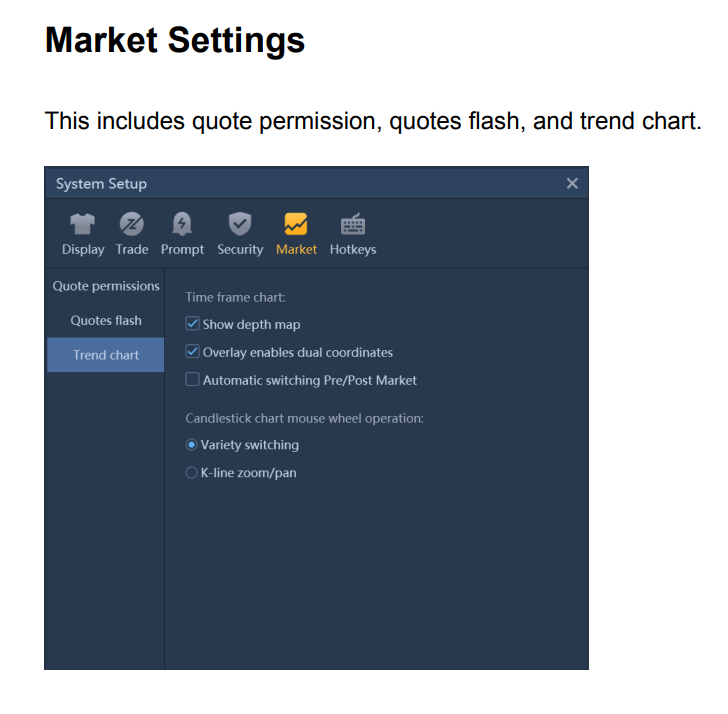
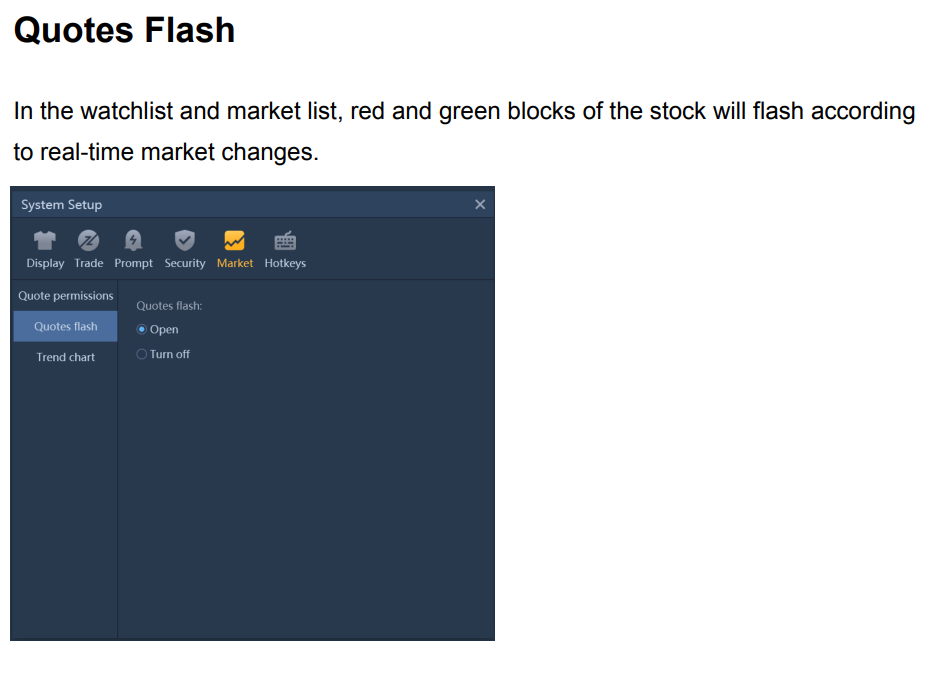
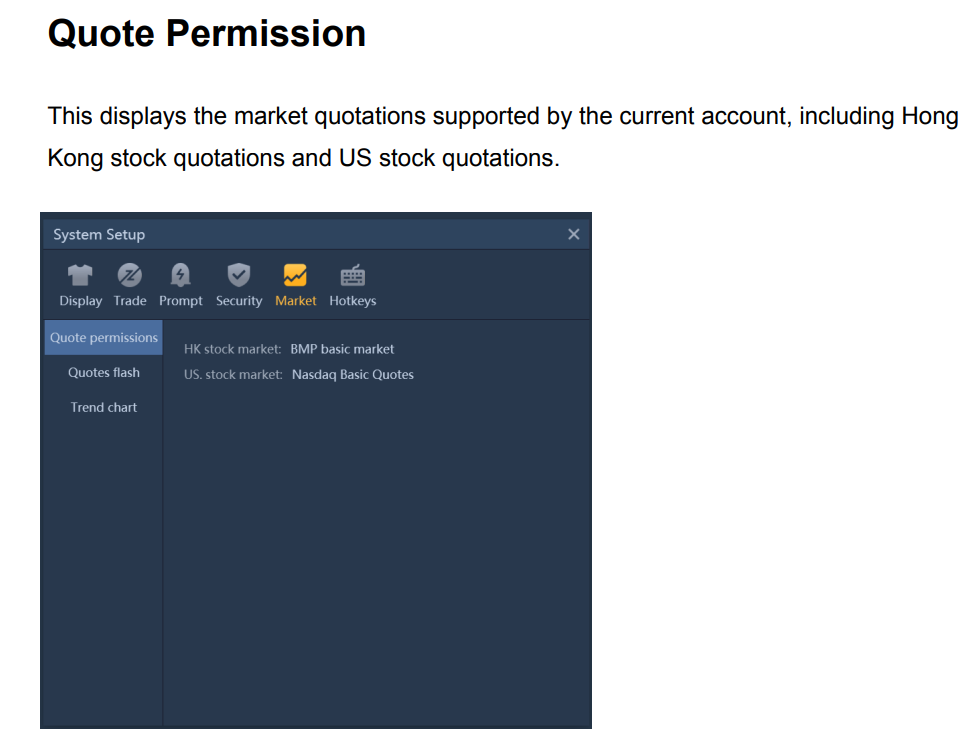
M+ Global PC Version - Settings
M+ Global PC Version – Settings
M+ Global PC Version - Settings
M+ Global PC Version – Settings

(b) Individual Stocks

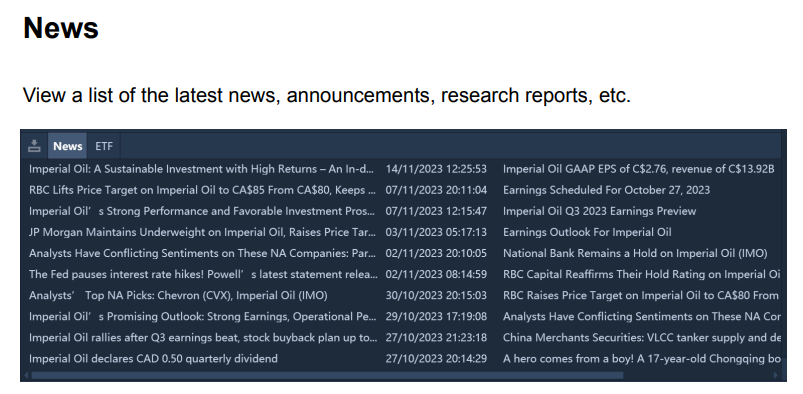
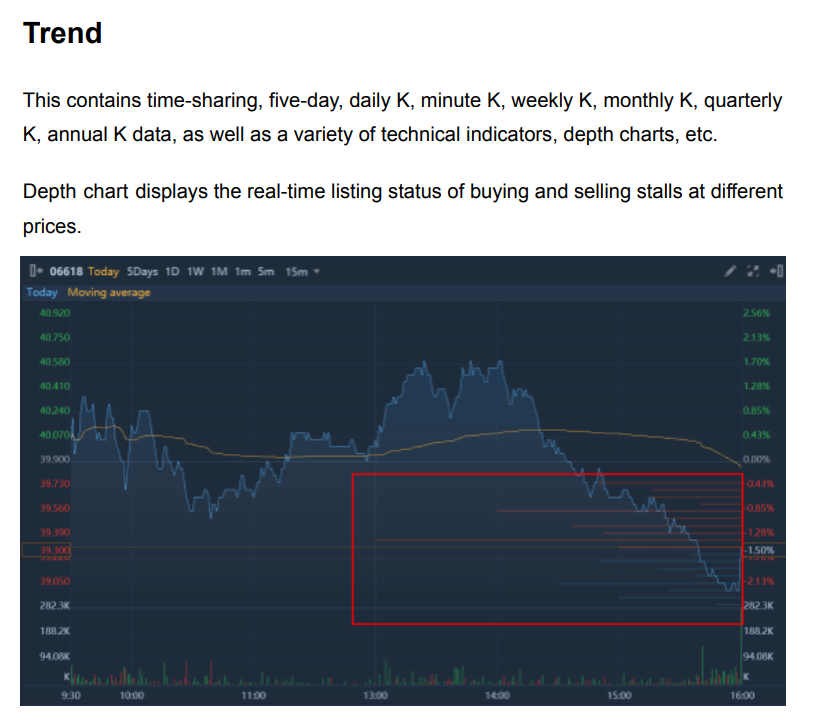
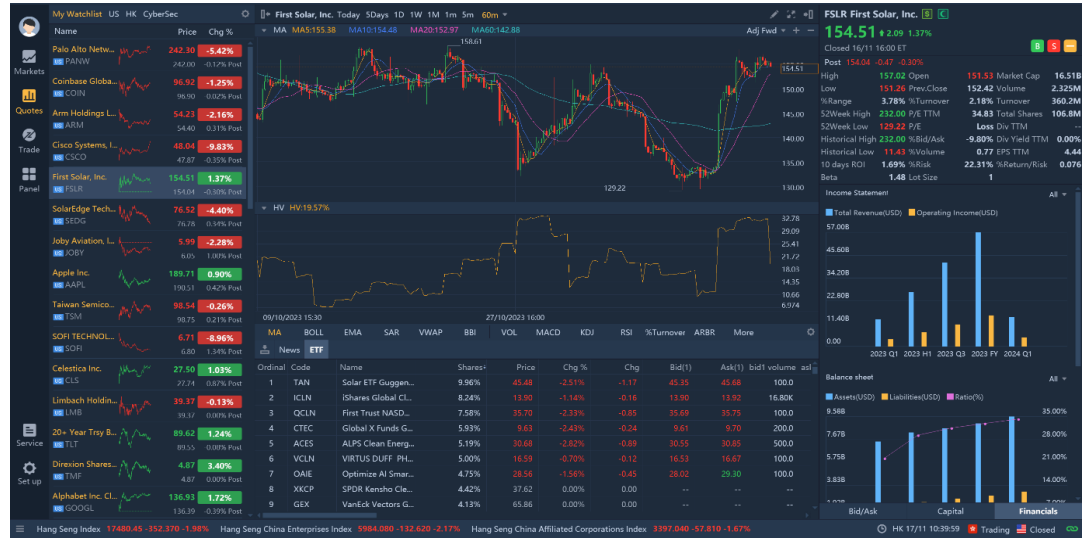
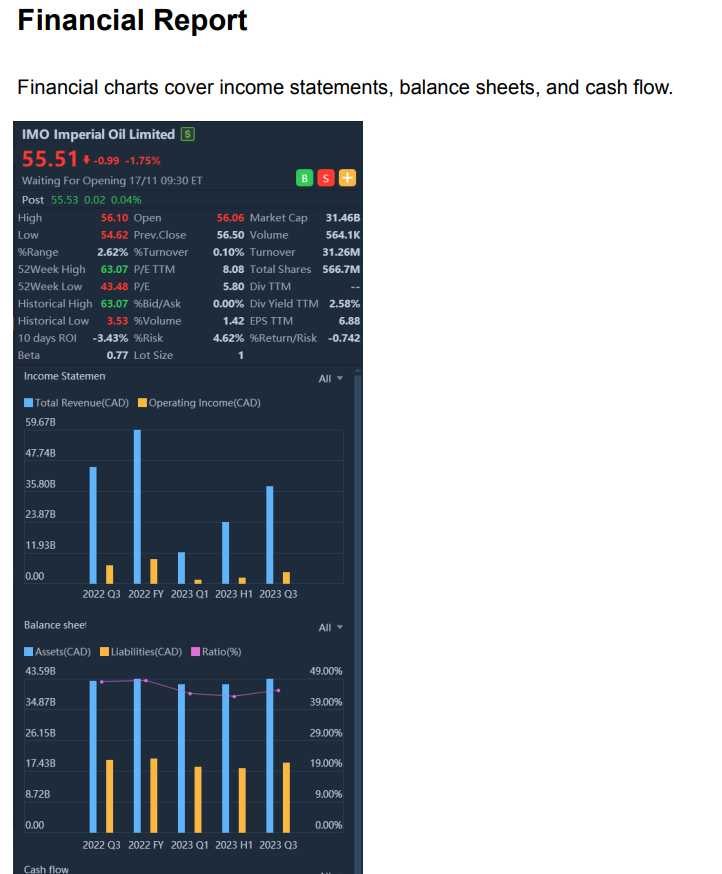
​This includes self-selected lists, individual stock quotes, market data, trend charts, news information, fund distribution data, financial report data, and quick transactions.
M+ Global Desktop Version: The Ultimate Guides & FAQs (image 6)
​Individual Stock Quotes
​

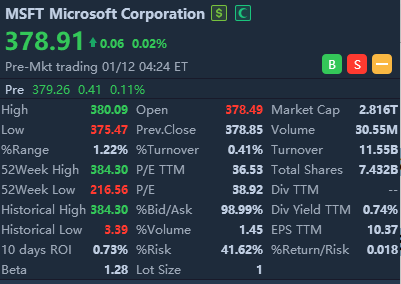
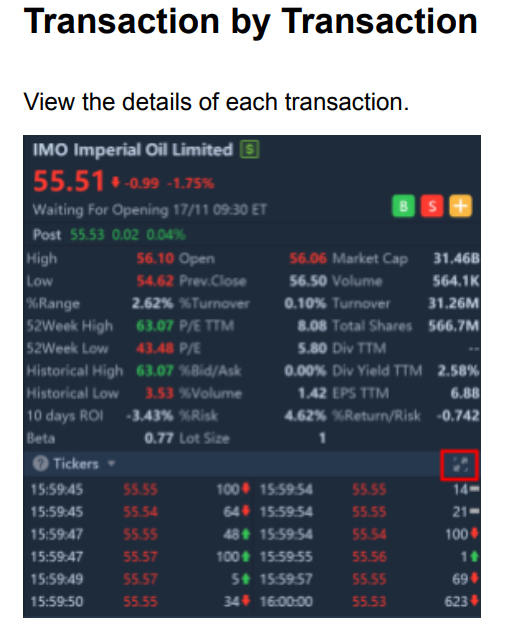
These quotes display stock trading time, summary data, transaction data, etc. When there is a correlation between US stocks and Hong Kong stocks, the difference between the rise and fall of the stock prices will be displayed.
M+ Global Desktop Version: The Ultimate Guides & FAQs (image 7) M+ Global Desktop/PC Version – Individual Stock Quotes
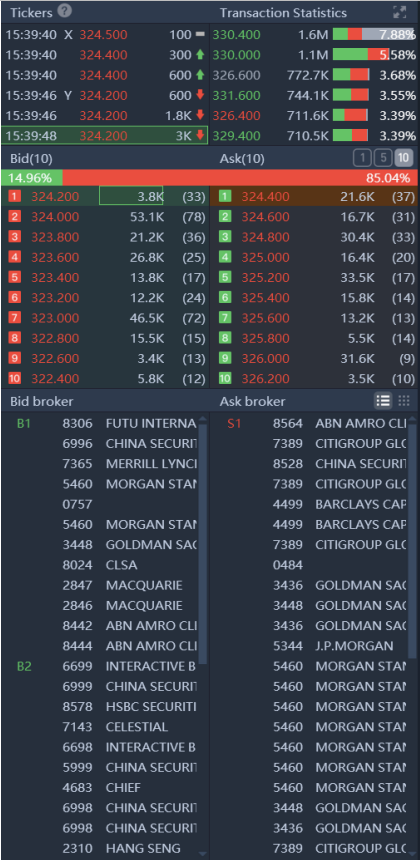
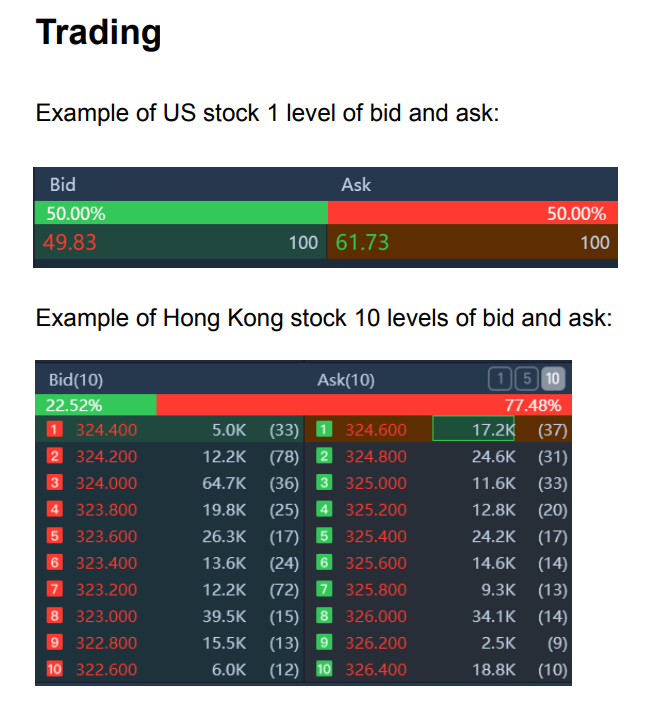
M+ Global Hong Kong stocks support 10 levels of bid and ask. M+ Global Hong Kong stocks support 10 levels of bid and ask. Real-time Market Data

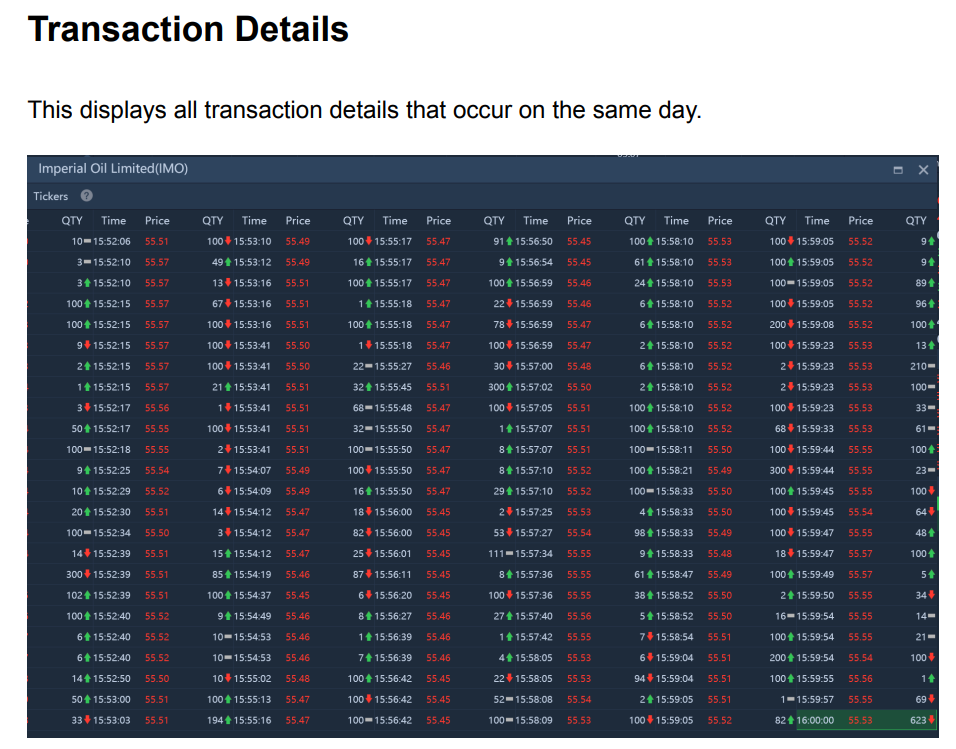
This displays the latest real-time market data for buying and selling orders, transaction records and funds. Currently, 1 level of bid and ask (LV1 Market Data) is supported for US stocks, and 10 levels of bid and ask (LV2 Market Data) is supported for Hong Kong stocks and trading brokers.
M+ Global Desktop Version: The Ultimate Guides & FAQs (image 9)

M+ Global Desktop Version: The Ultimate Guides & FAQs (image 10)
M+ Global Desktop Version: The Ultimate Guides & FAQs (image 11)

​Funds

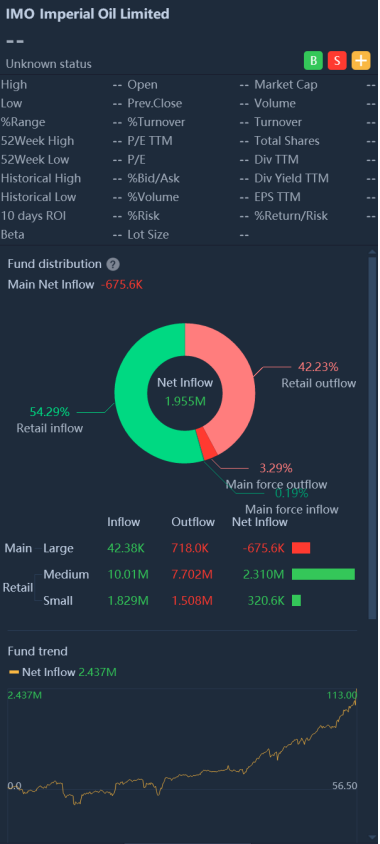
This displays data charts including main net inflows, outflows, capital trends, and net capital inflows in the past 60 days. Under fund distribution, you can view the transaction data of small orders, medium orders and large orders. Under future trends, you can view real-time net inflow and outflow of data in the past 60 days.
M+ Global Desktop Version: The Ultimate Guides & FAQs (image 12)
M+ Global Desktop Version: The Ultimate Guides & FAQs (image 13)
M+ Global Desktop Version: The Ultimate Guides & FAQs (image 14)

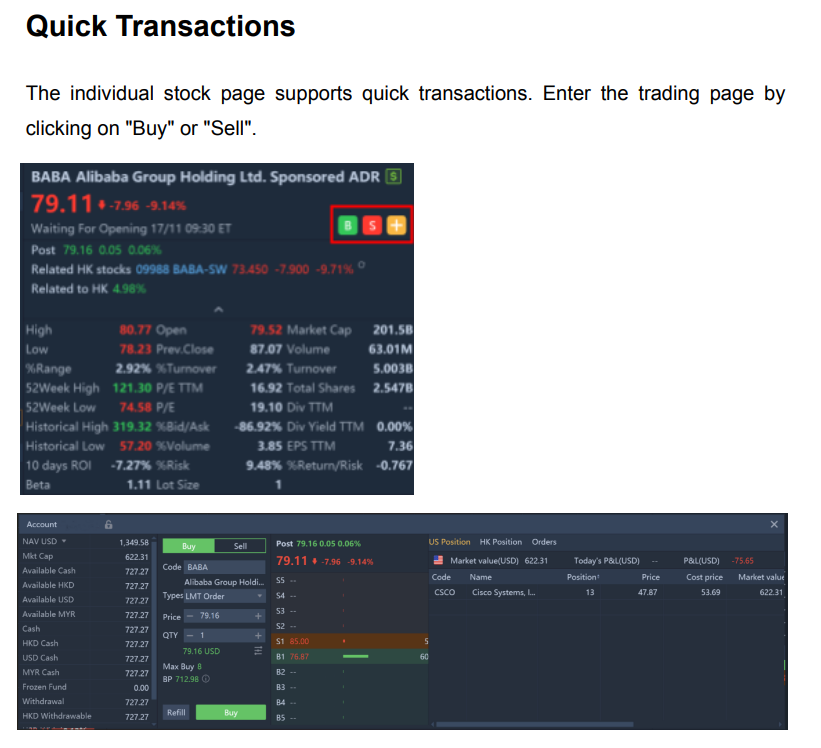
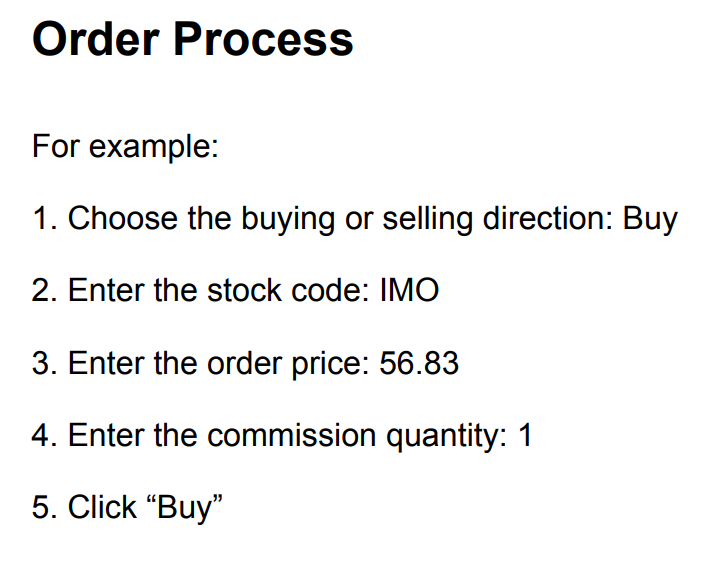
Buy and Sell Button

Quick Buy/Sell buttons in M+ Global
M+ Global Desktop Version: The Ultimate Guides & FAQs (image 16)
M+ Global Desktop Version: The Ultimate Guides & FAQs (image 17)

Trading
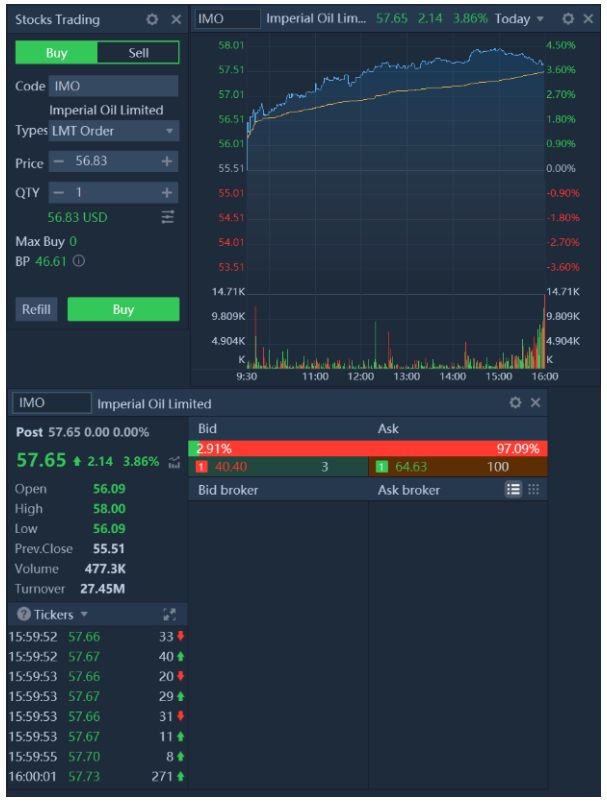
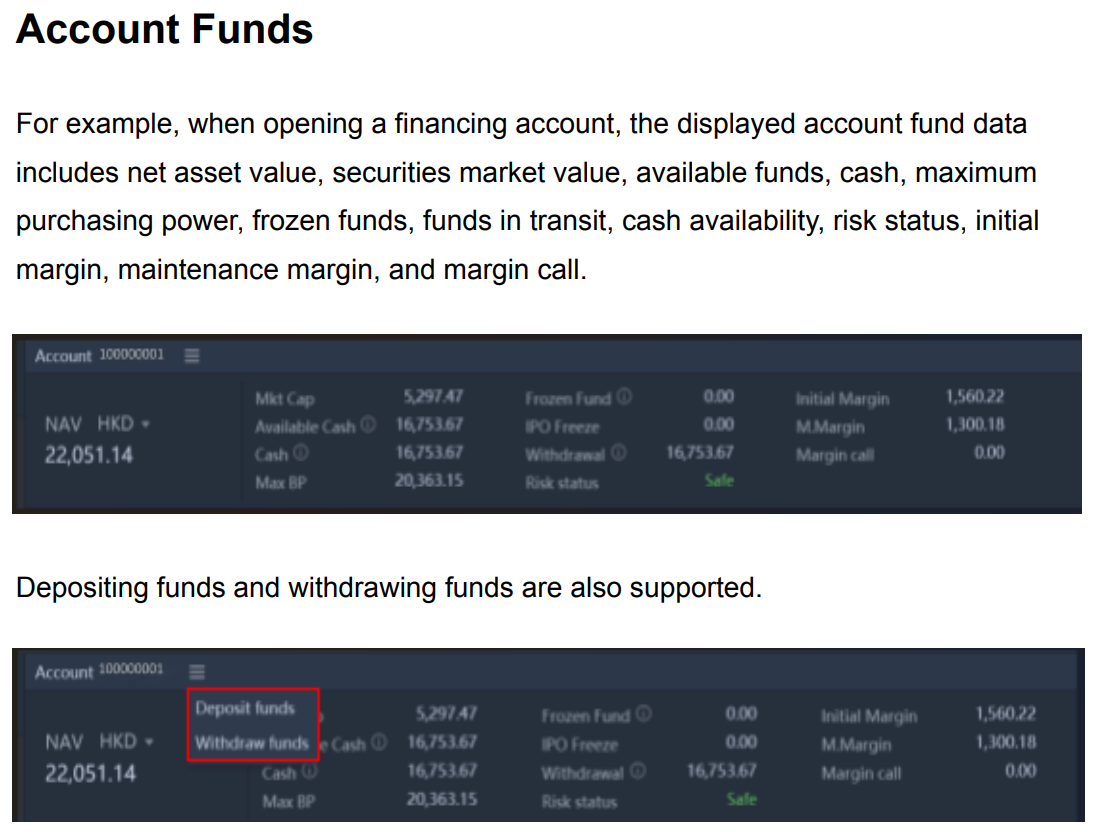
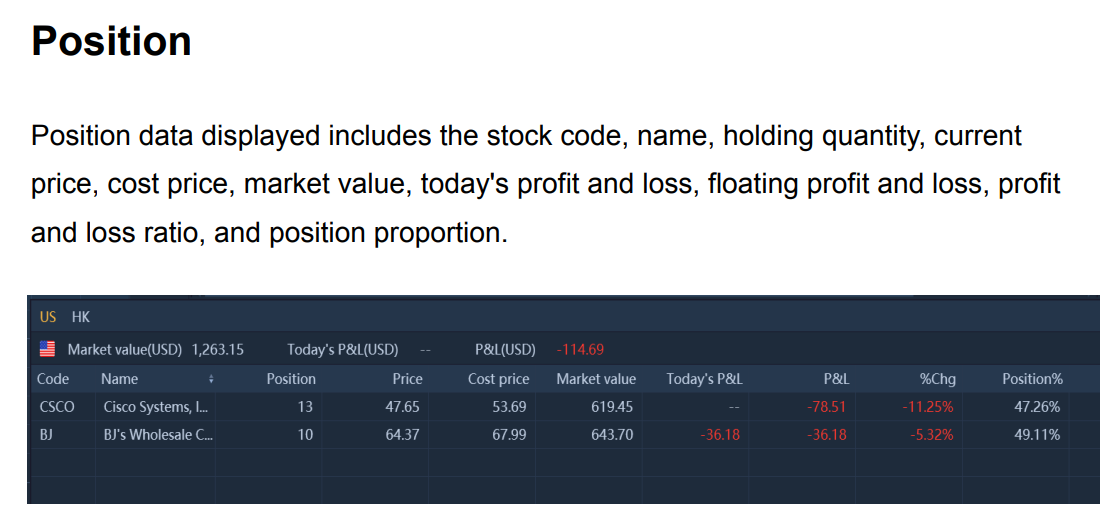
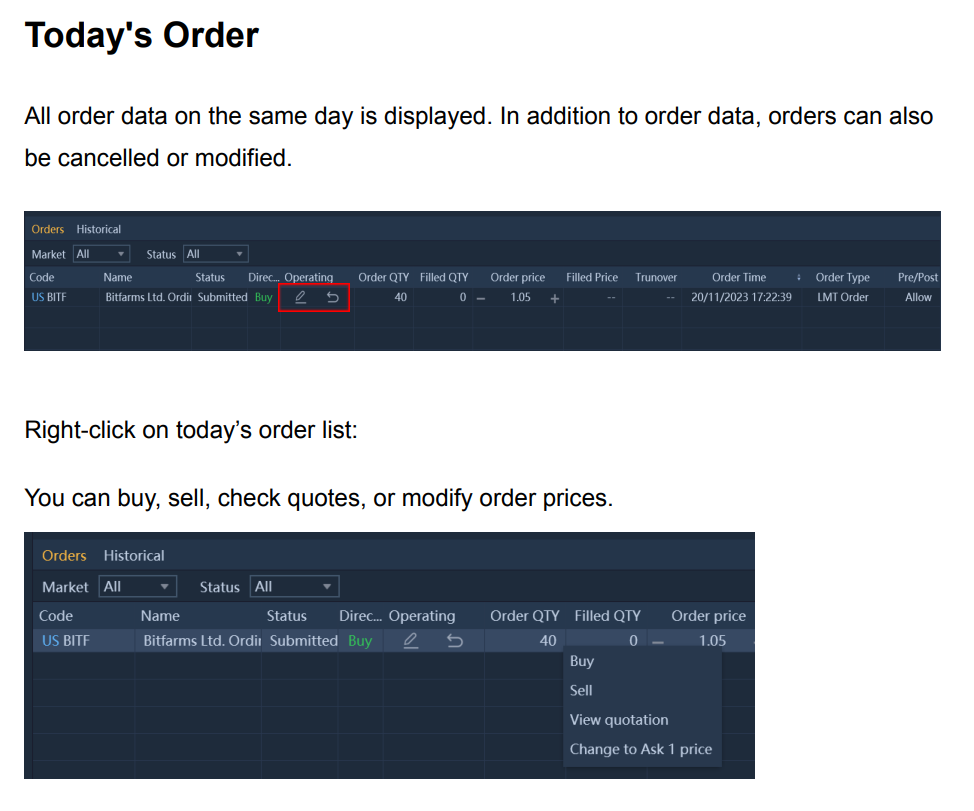
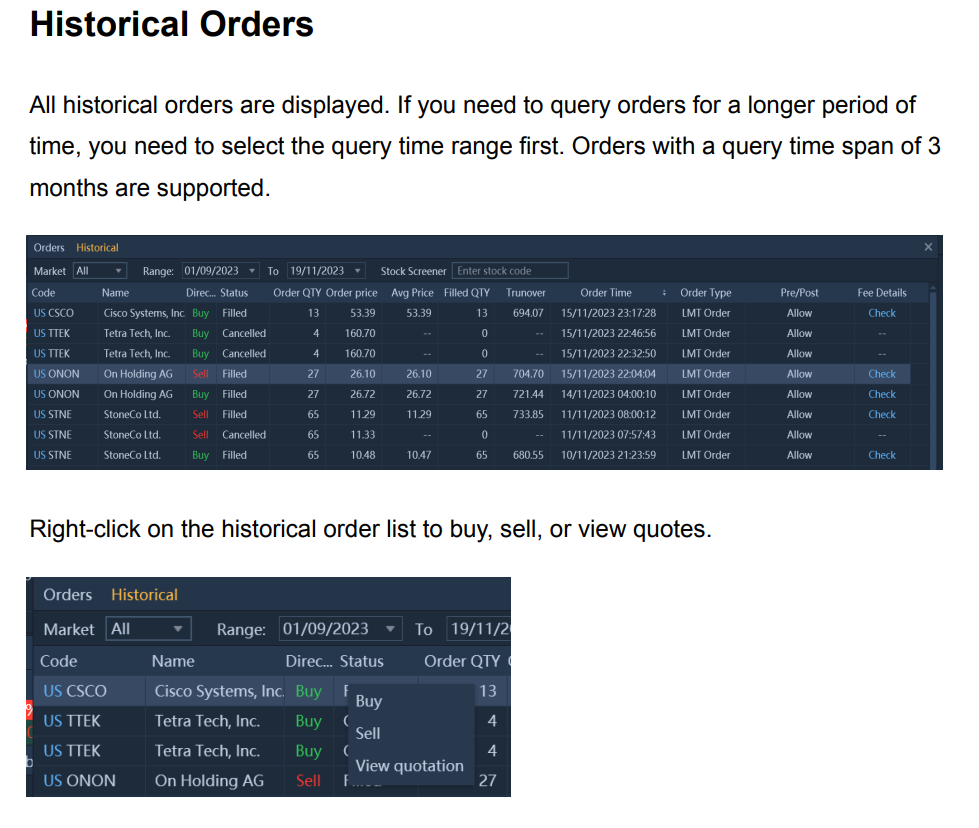
This includes watchlists, transactions, individual stock quotations, individual stock trend charts, account funds, positions, today’s orders, and historical orders.​

M+ Global Desktop Version: The Ultimate Guides & FAQs (image 18)
M+ Global Desktop Version: The Ultimate Guides & FAQs (image 19) M+ Global Desktop Version: The Ultimate Guides & FAQs (image 20)
M+ Global Desktop Version: The Ultimate Guides & FAQs (image 21)
M+ Global Desktop Version: The Ultimate Guides & FAQs (image 22)
Important Icons to Cancel / Edit your Order in M+ Global Desktop Version.
M+ Global Desktop Version: The Ultimate Guides & FAQs (image 24)

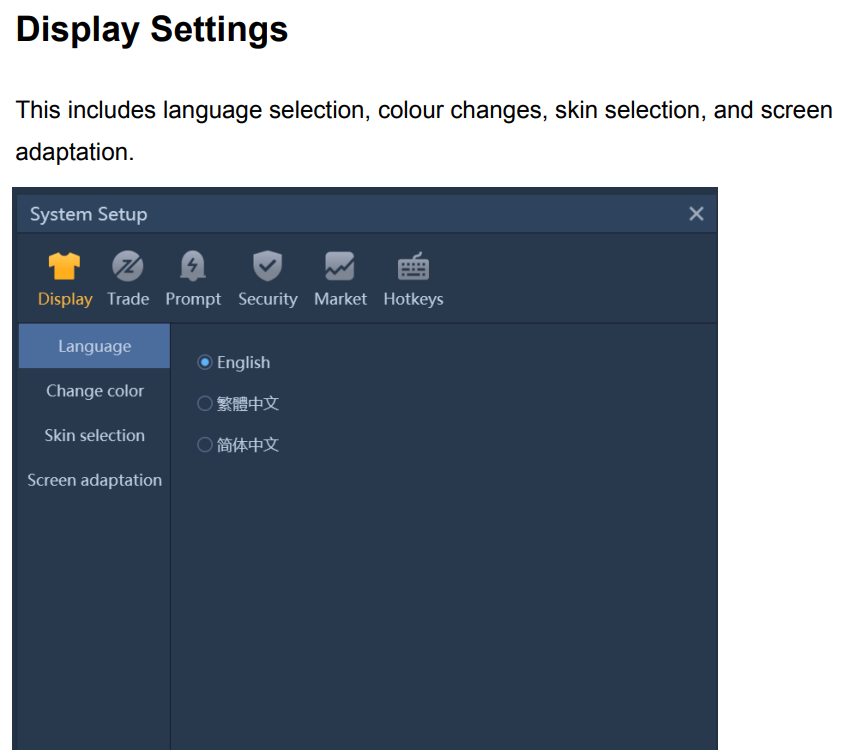
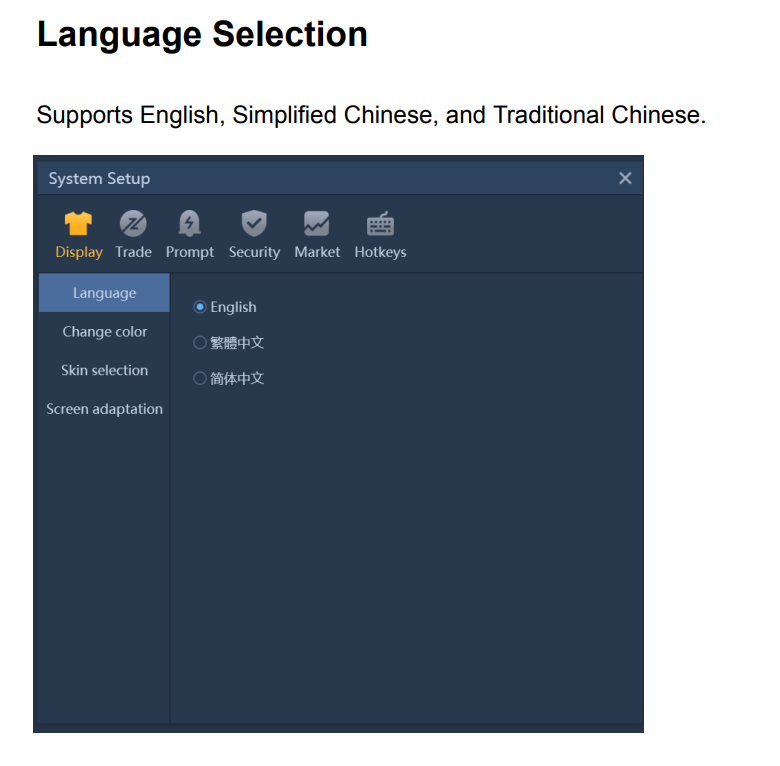
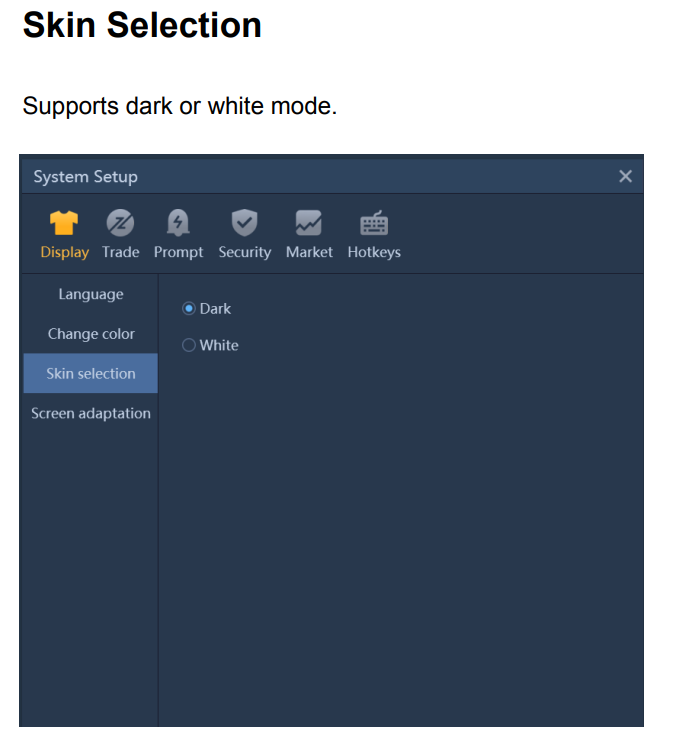
Settings

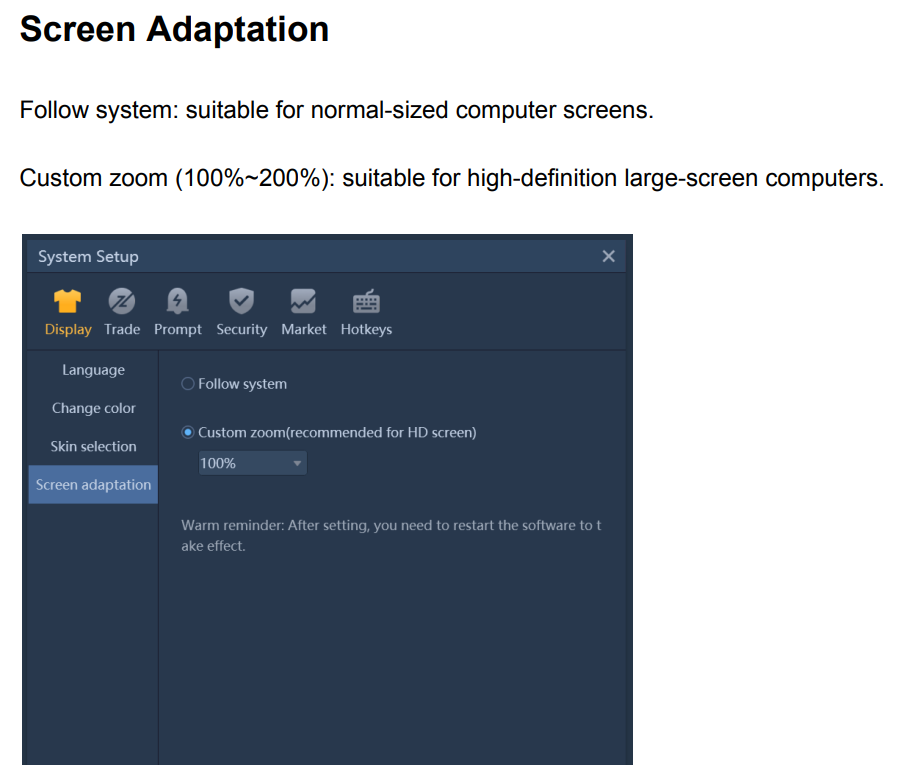
M+ Global Desktop Version: The Ultimate Guides & FAQs (image 25)
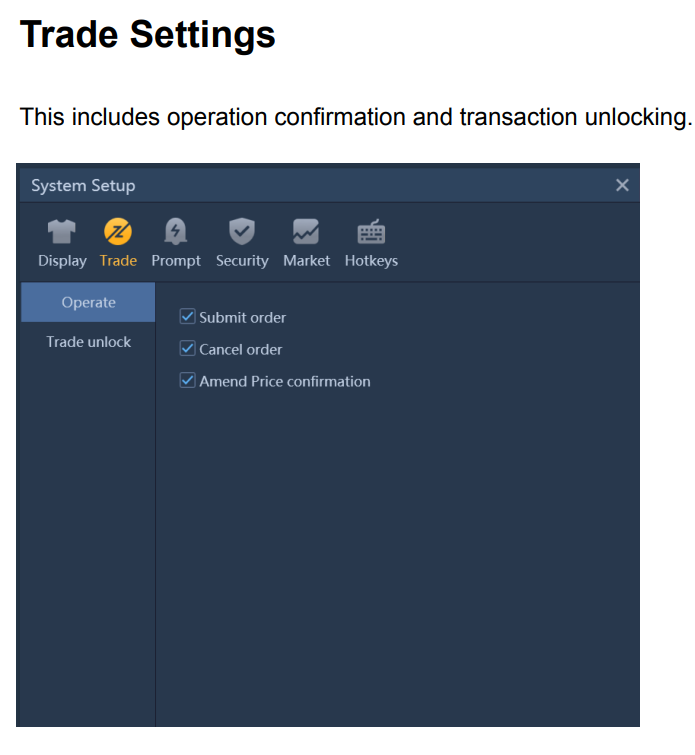
M+ Global Desktop Version: The Ultimate Guides & FAQs (image 26)
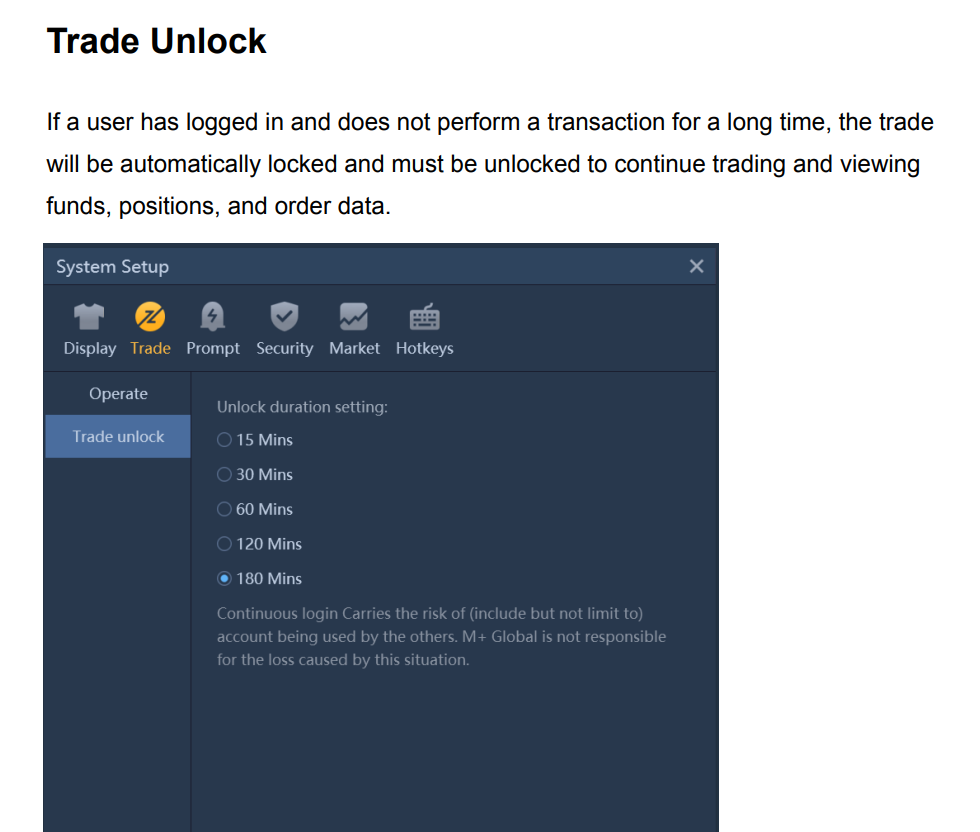
M+ Global Desktop Version: The Ultimate Guides & FAQs (image 27)
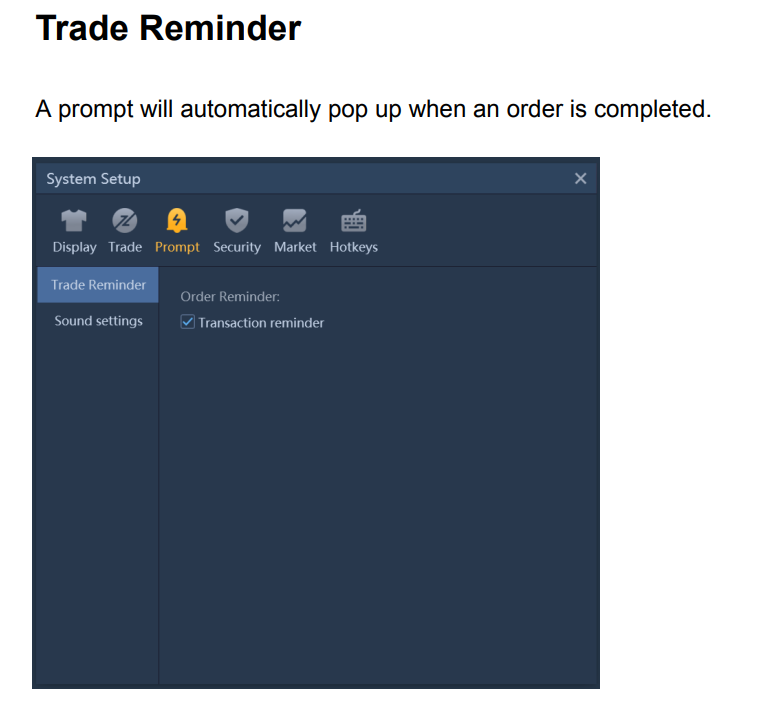
M+ Global Desktop Version: The Ultimate Guides & FAQs (image 28)
M+ Global Desktop Version: The Ultimate Guides & FAQs (image 29)
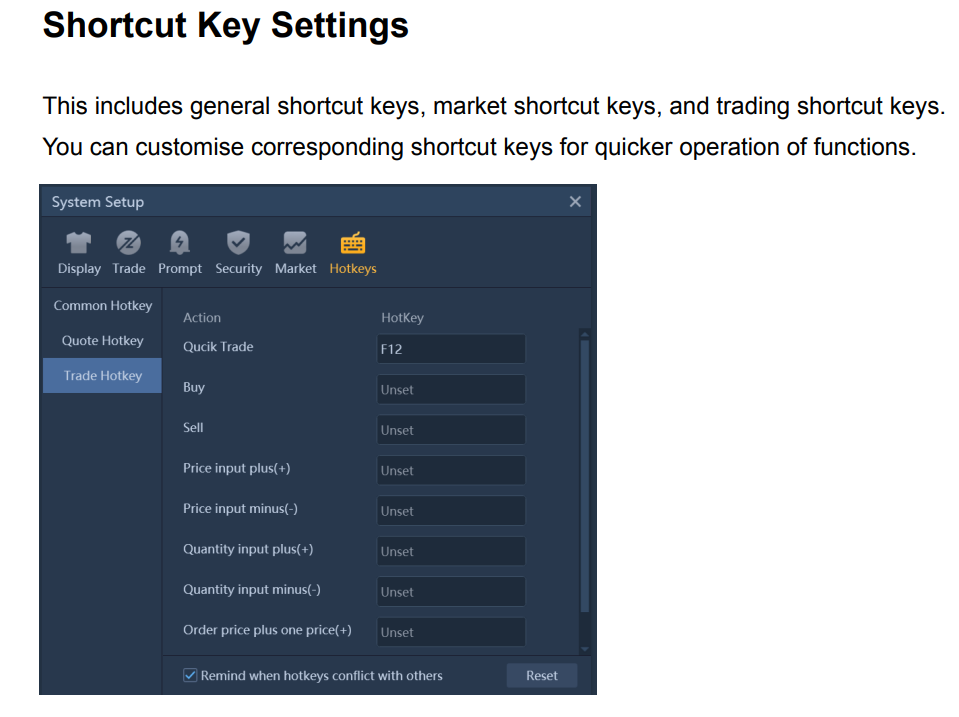
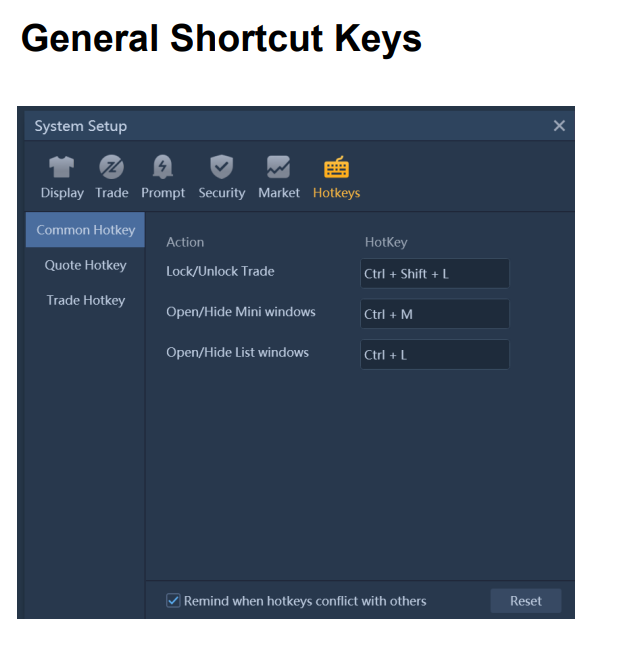
M+ Global Desktop Version: The Ultimate Guides & FAQs (image 30)
M+ Global Desktop Version: The Ultimate Guides & FAQs (image 31)
M+ Global Desktop Version: The Ultimate Guides & FAQs (image 32)
M+ Global Desktop Version: The Ultimate Guides & FAQs (image 33) M+ Global Desktop Version: The Ultimate Guides & FAQs (image 34)
M+ Global Desktop Version: The Ultimate Guides & FAQs (image 35) M+ Global Desktop Version: The Ultimate Guides & FAQs (image 36)
M+ Global Desktop Version: The Ultimate Guides & FAQs (image 37) M+ Global Desktop Version: The Ultimate Guides & FAQs (image 38)

FAQs

1. How do I download and install the M+ Global Desktop Version?

2. What markets do M+ Global covers?

  • US Stock Market
  • Hong Kong Stock Market

3. How do I register an M+ Global account?

  • 1. Download M+ Global app
  • 2. Register Online
  • 3. Fill in the Invitation Code: UBZQ

You will enjoy all the professional services here.
Scroll to Top