Quick Answer: In M+ Global Desktop, right-click a stock chart and choose Trade, pick Buy or Sell, check the stock code and order type (limit order by default), then enter the price and quantity and press Buy or Sell. “Cash Buy” shows how many shares your cash covers and “Max Buy” the maximum for margin users; use the pencil icon to edit an order and the undo icon to cancel it.
We will teach you how to place order on Mplus Global PC / Desktop Version!
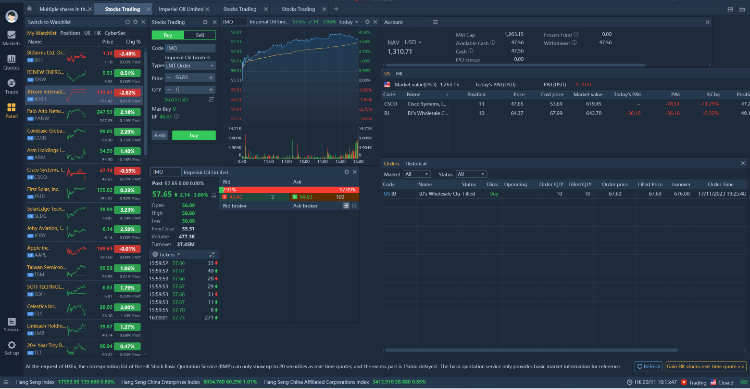
How to Perform Trades?
- Right clicks on the Stock Chart.
- Click on Trade
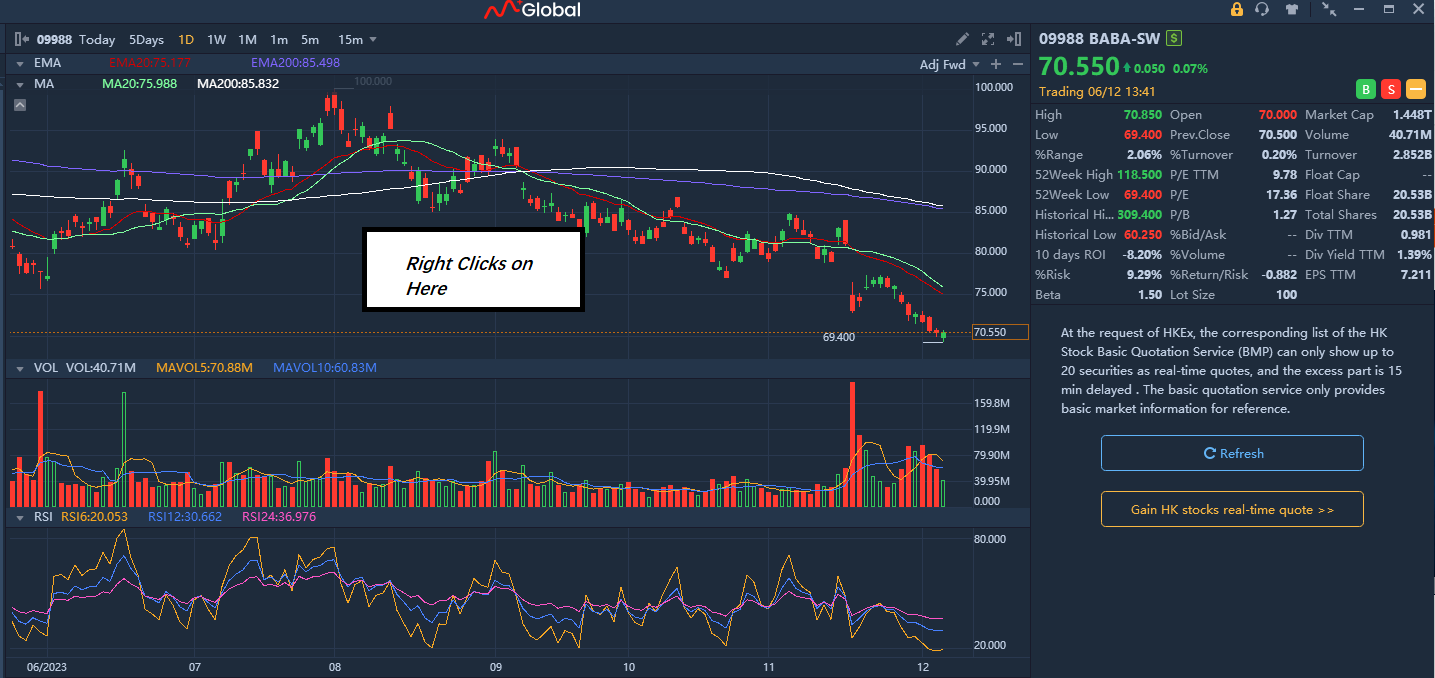
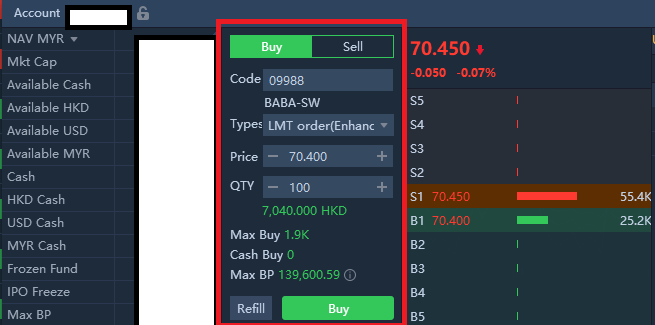
You can see a pop up window like this.
For Example:
1. Choose Buy or Sell
2. Confirm Code (By Default: Auto) – Here is showing 09988, as I right click on the stock and press <Trade>
3. Confirm Order Type (By Default: LMT Order)
4. Enter Price (Order Price)
5. Enter QTY (Quantity)
Max Buy – is the maximum quantity you can buy (if you’re Margin Account User)
Cash Buy – is the maximum quantity you can use your current cash to buy
Refill – reset everything
Once confirmed, you can press “Buy/Sell” button.
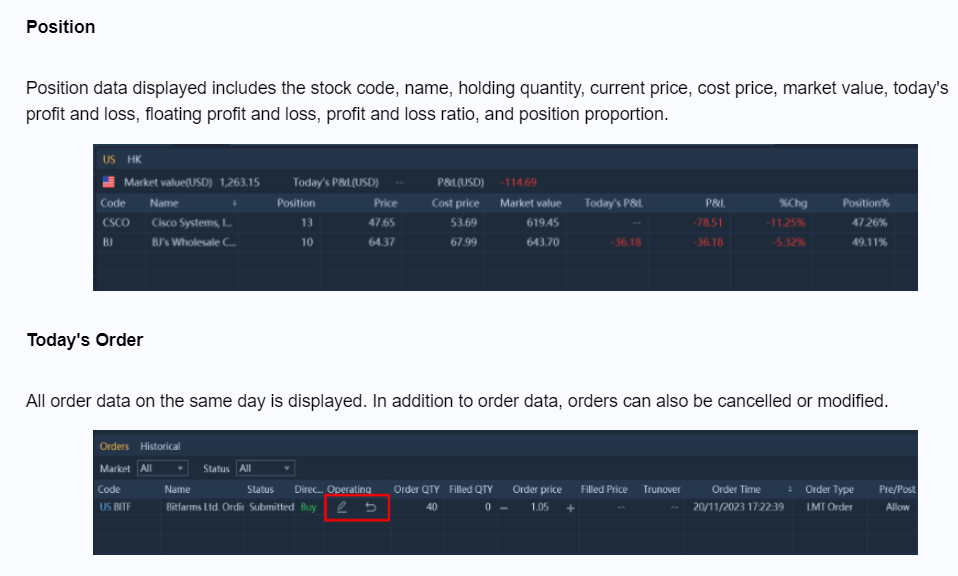
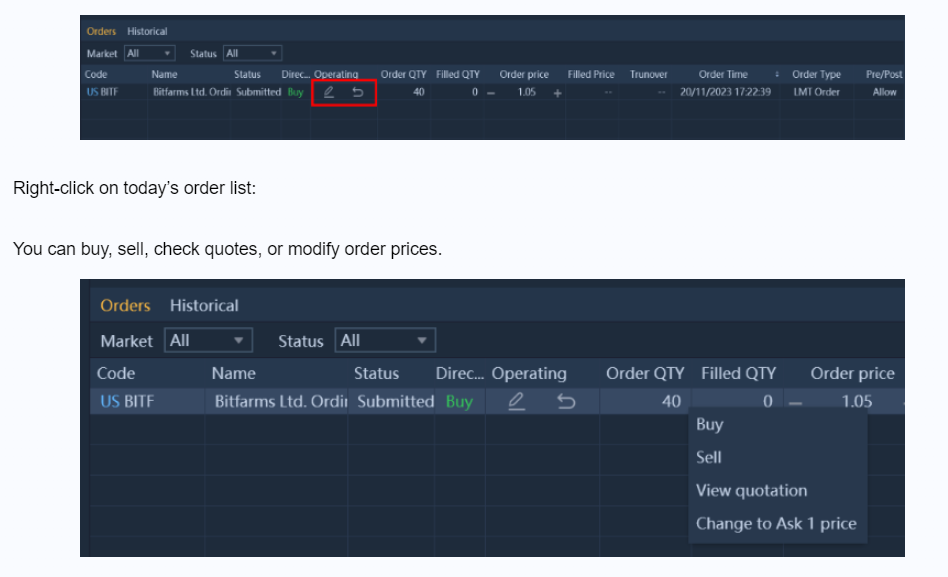
The Pencil Icon indicates “Edit the Order”.
The Undo Icon indicates “Cancel the Order”.
You can view my previous blog post to learn more on M+ Global Desktop/PC Version.